 Made in DeveloperHub

Your data is your data. You can always export it at any time.
We provide project exports in two formats:
Markdoc: Use if you wish to re-import the data into DeveloperHub later with no data loss.
Markdown: Use for external purposes.
You can export the whole project, a single version, or an individual page. A whole version can be exported to PDF, and a single page to its own PDF.
Markdoc
Markdoc is the markdown-based format DeveloperHub uses for pages. When a project is exported, and imported back, Markdoc allows the following to be retained:
All the published and draft text in each page.
All the blocks in each page with every configuration and detail.
The order of the pages.
Categories and external links.
Documentation settings.
Exporting a Project
To export a project:
Open Project Settings → Import & Export.
Under Take content out, click Markdoc or Markdown. The active project will be exported.
It will take a few seconds, and a download will start. The downloaded file is a compressed file (zip) containing all versions, documentations, API references, and indices of the documentation. The structure of the file is as such:
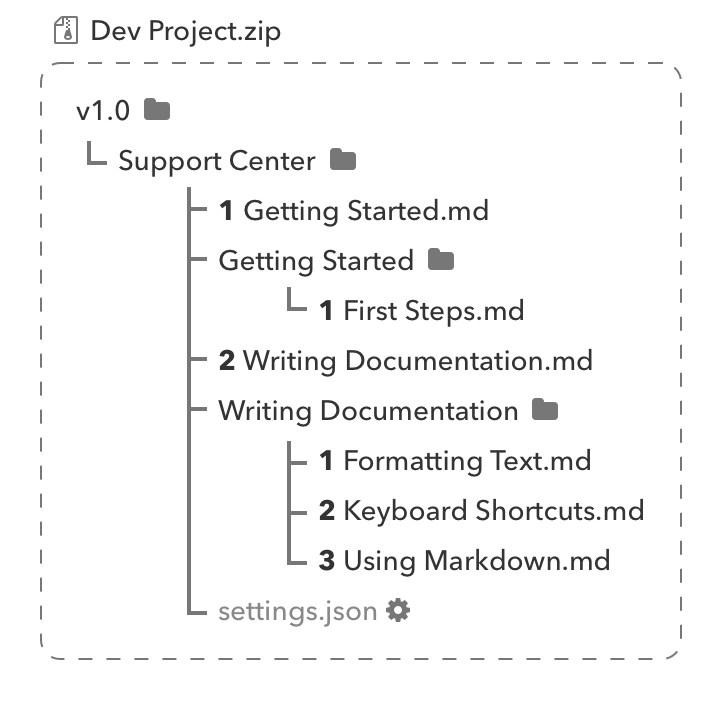
To learn how to import this export back into DeveloperHub, check Importing Documentation.
Exporting a Version
You can also export a single version on its own:
Open Manage Versions (version menu → settings cog).
Select the version.
Under Lifecycle, choose Export as Markdoc for a full-fidelity zip you can re-import with no data loss, or Export as Markdown for a portable zip for external use.
The download is a zip named after the version, containing that version's documentations, pages, and API references. Project-wide changelogs are not included in a single-version export; use a project export if you need them.
The same card also offers Export as PDF, which opens the PDF Export pane with this version already selected.
Exporting a Page
To export a page:
In the documentation index, select the page to be exported.
Click on Export under the title.
Choose the export format: Markdoc, Markdown, Word or PDF.
If you plan to re-import the page into DeveloperHub later with no data loss, use Markdoc format.
Exporting a Page to PDF
A single-page PDF downloads as soon as it is ready, named after the page. It contains the page on its own: the title, the body, and a page number on each sheet so a printed hand-out collates. The navigation index, the table of contents, and the covers and banners of a version PDF are all left out. Tabs and accordions are laid out open, so nothing stays hidden inside a collapsed section.
You get the draft you are looking at, the same as the other formats in the menu. Conditional content is resolved as an anonymous reader would see it, so blocks restricted to an audience are left out.
Single-page PDF export needs the same plan as PDF Export. Where it is not available, PDF does not appear in the export menu.
Printing a Page
Any page can be printed straight from the browser with Ctrl+P (Cmd+P on a Mac), on your published documentation as well as in the editor. The printed copy keeps the page content and drops the interface around it: the navigation index, the table of contents, the top bar, and the copy button on code blocks. Pages always print on a light background, even when you or your reader is viewing in dark mode.
Code blocks stay dark in both themes, and browsers leave background fills out of printed output by default. Tick Background graphics in your browser's print dialog to have them come out readable.
Exporting Images
To export the images you have in your DeveloperHub project, follow these steps:
Get a markdown export of your project first.
Unzip the export.
Use our tool mdimg which finds all the URLs in the export and downloads the images. You can find already built binaries for linux and mac in the releases.