 Made in DeveloperHub

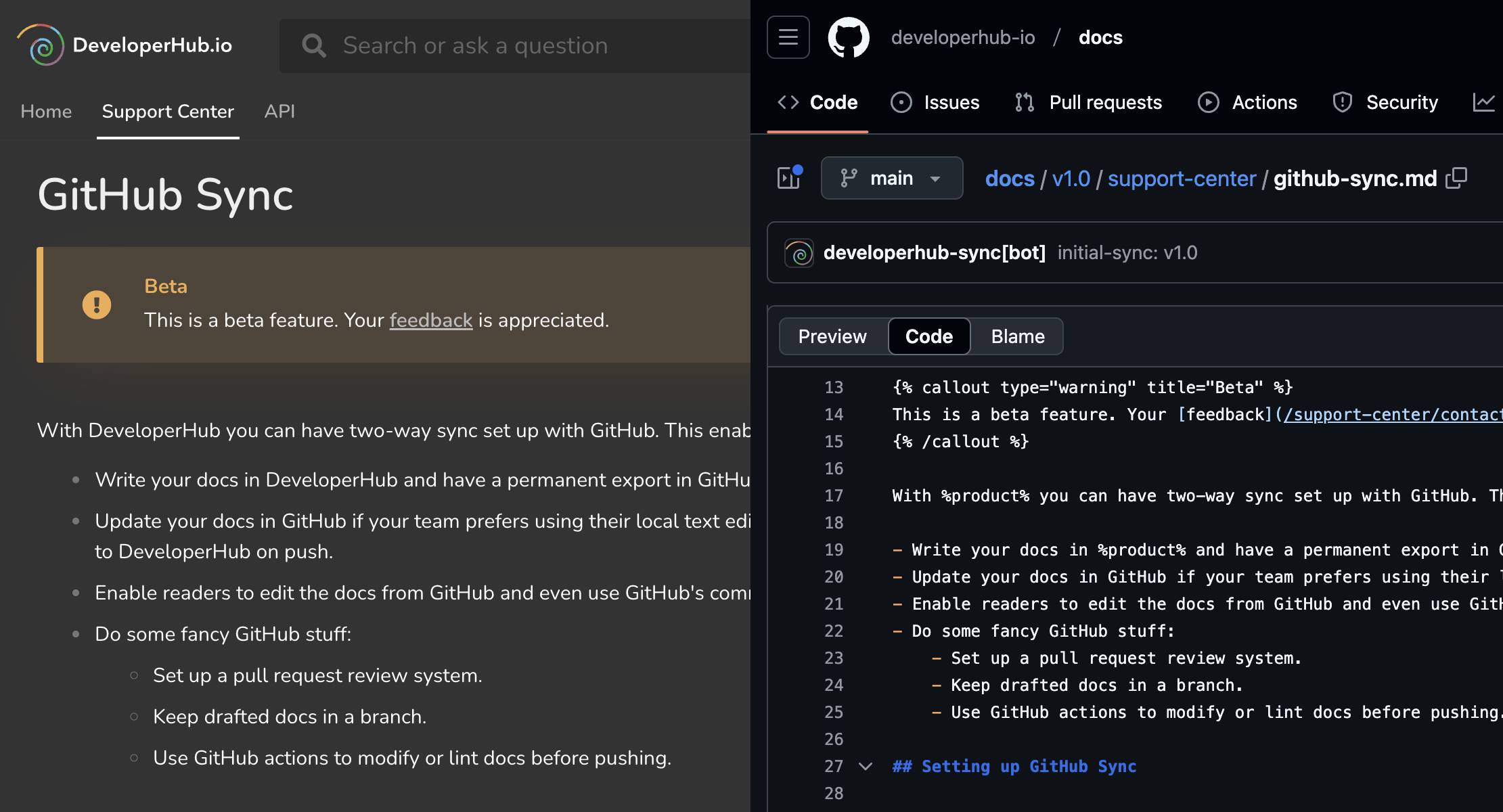
This is a beta feature. Your feedback is appreciated.
With DeveloperHub you can set up two-way sync with a GitHub repository. This lets you:
Write your docs in DeveloperHub and keep a permanent copy in GitHub.
Edit your docs in GitHub if your team prefers working in a local text editor, and have those changes reflect in DeveloperHub on push.
Let readers suggest edits from GitHub, using GitHub's own editing and comment tools.
Add your own GitHub workflow on top:
Review changes through pull requests.
Keep unpublished drafts on a separate branch.
Run GitHub Actions to lint or transform docs before they sync.
Setting up GitHub Sync
Set-up happens on both the GitHub side and the DeveloperHub side.
Create the repository you want to sync with, and make sure it has at least one commit (so it has a branch). An initial commit adding a
READMEis enough.In DeveloperHub, open Project Settings → Integrations.
Click Connect next to GitHub, then complete the authorisation on GitHub and grant access to the repositories you want to sync.
If you have multiple projects, choose all the repositories you want to sync with.
You are taken back to DeveloperHub. Open the Docs Sync settings pane (Project Settings → Developers → Docs Sync). This is where you configure and monitor the sync from now on. On the Sync tab, set:
Repository: pick from the repositories the DeveloperHub GitHub App can access.
Branch: the branch DeveloperHub commits to and pulls from.
Base path (optional): for monorepos, the directory your docs live in (for example
docs/files). Leave it empty to sync from the repository root.First sync: the direction of the very first sync. Choose Export to commit your existing DeveloperHub pages to the repository, or Import to bring the repository's files into DeveloperHub.
Reader edits: turn on Let readers suggest edits on GitHub to show an "Edit on GitHub" link on every page.
Draft branch (optional): mirror unpublished drafts to a separate branch (see Draft branch).
Click Start sync to run the first sync. It can take a few minutes.
On an Export first sync, any repository files at the same paths as the exported files are overwritten.
Changing the base path re-scopes which part of the repository is mirrored, so DeveloperHub resets the sync state and runs the initial sync again.
What Gets Synced
All published pages are synced. Pages that are still in draft and have never been published are not, unless you enable a draft branch.
DeveloperHub commits to the repository whenever:
A published page's content changes (whether the page is listed or not).
A page's settings change.
A page is created, moved, renamed, or deleted.
A documentation section is created, its settings change, or it is deleted.
A version is created, its settings change, or it is deleted.
The navigation order or grouping changes.
An API reference is added or updated.
A changelog or one of its posts is created, edited, or deleted.
A synced block is created, edited, or archived.
Project settings change, including the title, variables, and your reader customisation.
Whenever a matching file is created or updated in the repository, the corresponding content or settings are updated in DeveloperHub.
If an error occurs while syncing changes from GitHub to DeveloperHub, we email the person who pushed the commit.
Repository Layout
The core idea is that the path is the structure, and the filename is the slug. A page's folder location sets its version, documentation section, and parent pages; its filename (without .md) is its URL slug. Ordering and grouping live in _nav.yaml, not in the folder layout.
From the base path, the repository is laid out like this:
developerhub.yaml (repository root): the project
titleandvariables, plus thesettingsandnavigationblocks that hold your reader customisation. Everything else at the root (yourREADME,LICENSE,.gitignore, and so on) is left untouched._theme/: the files behind your reader customisation, namely your stylesheet, custom HTML, logo, and favicon (see Reader Customisation).
_synced-blocks/: your synced blocks, one file per block (see Synced Blocks).
{version}/_settings.yaml: version settings, plus the order of documentation sections and references.
{version}/{documentation}/_settings.yaml: documentation settings.
{version}/{documentation}/_nav.yaml: the sidebar order, categories, labels, separators, external links, and any icons for that documentation.
{version}/refs/: API reference specs, one file per reference.
changelogs/: your changelogs, one folder per changelog and one file per post. Changelogs belong to the project rather than to a version, so this sits beside the version folders (see Changelogs).
assets/: images the sync has stored. In a page you can also reference an image by a relative path to a file you commit next to it.
Page content is written in Markdoc; settings and navigation are YAML.
For the complete rules (how to add, move, nest, group, reorder, or hide pages, versions, and references; the exact settings keys; and the round-trip gotchas), use the organize-docs-repo Agent Skill, or read it on GitHub.
Changelogs
Changelogs sync alongside your pages, so you can write a release note in the repository and open a pull request for it like any other change.
Each changelog is a folder under changelogs/, named after its path (the segment readers see in its URL). Each post is a single file, and its filename without .md is the post's slug. A post's frontmatter carries three fields, followed by the body in Markdoc:
title: the post title.
date: the date readers see and the one posts are sorted by. A plain date is enough; add a time (
2026-08-04 14:30:00) to order several posts within the same day.published: whether the post is live. Leave it out and the post stays unpublished, so pushing a file never puts a post live by accident.
The changelog's own _settings.yaml takes title, description, and published. Its path is the folder name, so rename the folder to change it. A changelog with no posts is still valid; its _settings.yaml is what keeps it in the repository.
changelogs at the base path is reserved, so a version cannot use it as a slug. If your project already syncs, your existing changelogs are committed to the repository on the next sync.
Two things differ from pages. Links in a post body use full site paths such as /support-center/getting-started, not the relative .md paths pages use. And posts have no draft state, so changelog files are not mirrored to a draft branch; edit them on your published branch.
Synced Blocks
Synced blocks live in _synced-blocks/, one file per block, in a flat folder. The filename without .md is the block's ID, which is the same ID you use in a page, so _synced-blocks/beta-feature.md is the block you embed as {% synced id="beta-feature" /%}.
The frontmatter carries the title, followed by the block's contents in Markdoc:
A block ID must start with a lowercase letter and use only lowercase letters, numbers, and hyphens. Because the ID is the filename, and a block's ID cannot change once it exists, renaming the file is read as deleting one block and creating another rather than as a rename.
A block with variables lists them in its frontmatter under variables, each name with its default value. In the contents, write {% $name %} in text and %name% in a code block:
Write each value in quotes, like '2.10', so YAML reads it as text rather than as a number. A value is one line of text, so a line break in it becomes a space.
A page sets its own values on the synced tag, each in quotes. Any variable it leaves out, or sets to an empty value, shows the block's default:
A variable's name cannot change in the editor, so changing a name under variables is read as removing one variable and adding another. Pages' values for the old name then stop showing.
Synced blocks have no draft state, so a block you push is live at once on every page that uses it.
Deleting a file from _synced-blocks/ archives the block rather than removing it, exactly as archiving does in the editor. Pages that embed it keep rendering it; it simply stops being offered when your teammates pick a block to reuse. Adding the file back restores it.
Reader Customisation
How your published docs look is synced too, split across two places by whether it is a file or a value.
The free-text files and images live in _theme/:
_theme/custom.css: your custom CSS.
_theme/head.html: your custom HEAD tags.
_theme/footer.html: your custom footer.
_theme/logo.png, _theme/logo-dark.png and _theme/favicon.png: your logo, your logo for dark backgrounds, and your favicon, committed as real image files. Any common image extension works, so
logo.svgis matched just aslogo.pngis.
A file that is absent means "use the default", so a project on the default logo has no logo file at all. Deleting one of these files clears that customisation outright, unlike a delete elsewhere in the sync (see When You Delete Files).
The settings that are values rather than files live in developerhub.yaml, under two blocks:
settings: theme choices such as dark mode, the theme toggle, your colours, and the font.
navigation: the top navigation links (up to four), whether they open in a new tab, and your navigation groups. A group lists the documentation sections and API references it holds by slug, and a changelog by its path. Its
iconis optional, and leaving the key out clears an icon set in the editor.
A value we cannot make sense of, such as a colour that is not a colour, is reset to its default and reported as a warning rather than stored.
Folders at the base path whose name starts with an underscore are reserved for DeveloperHub, as is changelogs. A version cannot use a slug that starts with an underscore.
Previewing in Your Editor
Install the DeveloperHub Preview extension in VS Code or a JetBrains IDE to see each page the way your readers will, beside the file, as you type.
Editing with AI Agents
If you edit the repository with an AI coding agent (in your IDE or a docs-as-code pipeline), install the DeveloperHub Agent Skills so it writes correct Markdoc and the correct repository structure.
In Claude Code, install them as a plugin, which is the one channel that updates itself:
For Cursor, Codex, and other agents, use the skills CLI:
The package ships two skills: write-markdoc for the Markdoc syntax inside a page, and organize-docs-repo for the repository layout (navigation, settings, images, references, and changelogs). Together they keep an agent's edits lossless, so they sync back without churn or lost content.
Pull Request Checks
On repositories synced through the GitHub App, DeveloperHub checks every pull request whose base is your synced branch. The check is a read-only dry run of the sync: it reports what would happen and never writes anything.
Broken relative links or images, and invalid settings, navigation, reference specs, or changelog post frontmatter, fail the check.
Everything else is reported as a warning.
Three things keep it green:
Keep a move and a content rewrite in separate commits. Doing both at once can defeat rename pairing, so the page would be treated as a delete plus a new page, and its history and comments would not follow.
The link scan only covers changed files. Moving or deleting a page does not flag links to it from pages you did not touch, so check those yourself.
References and documentation sections share one slug namespace per version, so a reference cannot take a documentation section's slug, or vice versa.
Draft Branch
By default only published pages sync, and they sync to the branch you chose during set-up. You can optionally mirror unpublished draft edits to a separate branch, so writers and Git users collaborate on drafts before they go live.
In the Docs Sync pane, on the Sync tab, turn on Sync draft edits to a branch and set a Draft branch name (the default is developerhub-drafts).
The draft branch is body-only: it carries page content, not structure. Structural work (adding, moving, and renaming pages, navigation, and settings, including page frontmatter) belongs on the published branch. A structural change made on the draft branch is deferred, not applied.
Letting Readers Edit on GitHub
Turn on Let readers suggest edits on GitHub in the Docs Sync pane to show an Edit on GitHub link on every page. The link opens the page's source file on your synced branch, where a reader can propose a change through GitHub's normal editing and pull request flow.
Page History and Sync Activity
When an edit arrives from GitHub, the page's edit history records the commit message and links the commit's SHA, so you can open the exact commit on GitHub.
The Docs Sync pane's Activity tab has a Sync activity feed showing recent reconcile runs: each run's direction (DeveloperHub → Repo or Repo → DeveloperHub), what changed (for example "3 pages" or "1 API reference"), its commit, and when it ran. A status chip at the top shows whether the project is In sync, has Changes pending, or has not synced yet.
When You Delete Files
Deleting a file from the repository does not remove the content behind it for good.
A page's
.mdfile: the page is hidden from your navigation, keeping its content, comments, and history.A version, documentation section, or API reference: it comes off your published site and out of the editor.
A changelog post: the post is unpublished.
Restore the file or directory in the repository within 30 days and the content comes back where it was, with everything it had. After that the removal is final, and what was attached to those pages, including comments and reader feedback, goes with them.
Your last version, and the only documentation section in a version, are never removed. Deleting one of those folders is reported as a warning and nothing else happens.
When a Change Is Blocked
If a change arriving from the repository would remove most of your documentation, DeveloperHub refuses it instead of applying it. Nothing is deleted and nothing is changed. The run appears in the Sync activity feed as Change blocked, nothing was changed, with the reason, and the status chip at the top of the pane reads Sync paused. We also email whoever pushed the commit, or the project owner if that person has no DeveloperHub account on the project.
A change is blocked when:
developerhub.yamlis missing from the repository root, or the repository holds no documentation at all. This usually means the branch or repository was pointed somewhere unintended, or the initial export was reverted.The change would remove every version.
The change would remove most of your pages.
Sync stays paused on that commit until the repository is put right, so a later push cannot slip past while the problem is still there. Push a fix to the synced branch and the next sync runs normally, or open the Docs Sync pane's Activity tab and click Check the repository again to try it there and then.
If the removal really was intended, click Apply the change anyway on that panel and confirm with Yes, apply it. What it removes then waits the same 30 days as any other delete. The option is there for a change that removes versions or pages; a block over a missing developerhub.yaml needs support instead.
Sync can also pause because DeveloperHub's own copy of your repository's file list has fallen out of step with the repository. There is nothing to fix on your side and pushing again will not clear it: click Repair and resume sync on the same panel.
Disconnecting GitHub Sync
To stop syncing, open Project Settings → Developers → Integrations and use Disconnect GitHub on the GitHub card. Your repository files are left in place; only the connection is removed.
Disconnecting also detaches any code repositories the AI agent was reading (see Self-Updating Docs), so you will need to attach those again if you reconnect.
You can also remove the DeveloperHub - Sync application from your GitHub settings (under your personal or organisation GitHub application settings). Once it is removed, the connection is freed on DeveloperHub's side automatically.
Not at the moment. GitHub is the only Git provider we sync with today. If you need GitLab, please contact us and let us know.