 Made in DeveloperHub


If you find yourself writing pages with the same format and structure, then you can use Templates to simplify your experience.
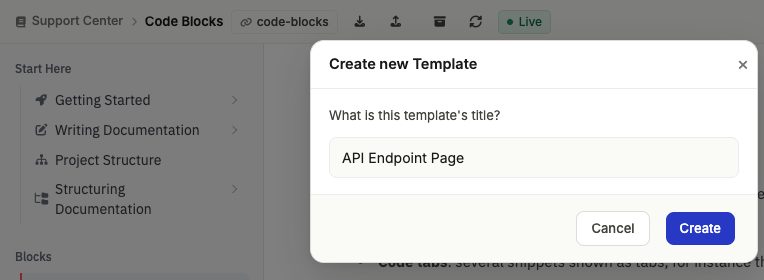
By using Templates, you can make an already existing page into a template, so the same format and structure can be applied on new pages.
Create a Template
To create a template:
Select the page you want to make a template of or create a new one and save it.
In the page bar above the title, click Create a template of this page .
Give the template a title. The template would be saved now.
Using a Template
To use a template:
Create a new page.
In the page bar above the title, click Create from Template . It shows on a new page until the page is first saved.
Select one of the existing templates you have already created, and click Choose. The template would be applied onto the page.
Delete a Template
To delete a template:
Create a new page.
In the page bar above the title, click Create from Template .
Find the template you wish to delete, and click the icon next to it.
Confirm your choice.
Share a Template Link
If you are usually building pages from templates, you might want to use a template link. The template link loads the documentation, creates a new page at the bottom of the index, and loads up the template. The new page stays unsaved until you save it, so closing it without saving leaves nothing behind.
To do this, use such a link:
Note that all parts of the link before ? are the exact same as any page link you have open in the editor. If you just load up the desired documentation in the editor, copy the link and add the query, that would be a template link.
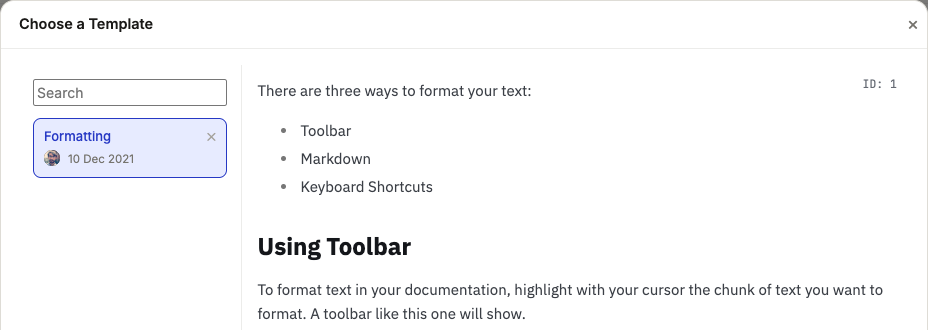
Where template_id is shown as ID at the top right of the template's preview when you are selecting a template:
Known Limitations
If a template has a page link in its contents, then the page link would only be valid for the version it was created in. You might want to create different template pages for different versions if you must have an internal page link in it.