 Made in DeveloperHub

Each documentation can have different settings. These settings affect their function. Documentation publishing state can also be controlled.
Minimal layout is no longer supported. Only wide layout is available. Also, index is always scrollable.
Description
You may manually set a description for your Documentation. The description will be read by search engines and shown in search results. To set the description:
Open Manage Sections (section menu → settings cog).
Select the documentation.
Edit the documentation description.
Collapsible Index
By default, the index of your documentation is all expanded. That means that the child pages (second-level pages) are always showing.
If your documentation has a long index, you might want to consider setting the index to collapsible. To achieve that:
Open Manage Sections (section menu → settings cog).
Select the documentation.
Check "Can parent pages indices collapse?" option.
The index will always be expanded in edit mode. This setting only has an effect in live mode.
Collapsible Categories
By default, all categories of your documentation would be expanded.
To change this behaviour and allow categories to be collapsed:
Open Manage Sections (section menu → settings cog).
Select the documentation.
Check "Can categories collapse?"
If you want the categories to be manually toggle-able, add a HEAD tag containing a script with window.settings.categoryToggle = true.
Show Page Last Updated
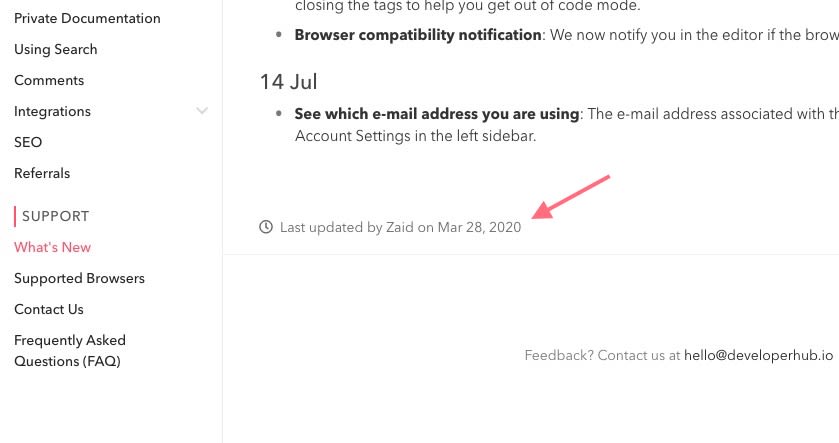
To enable your readers to see who updated the page last, and when was it updated, you can enable Show Page Last Updated setting. To achieve that:
Open Manage Sections (section menu → settings cog).
Select the documentation.
Change "Show page last updated?" to one of Disabled, Date & author or Date only.
Copy Documentation to Version
If needed, you can copy a documentation section to a version. The same documentation slug should not exist in the destination version. To copy the documentation section to a version:
Open Manage Sections (section menu → settings cog).
Select the documentation.
Click on Copy to Version and select the version.