 Made in DeveloperHub
DeveloperHub ships a single, in-house API Editor for working on OpenAPI 3.0, 3.1, and 3.2 definitions, plus legacy Swagger 2.0. It bundles a visual form editor, a syntax-highlighted source view, a side-by-side split mode, and a live linter, all in one workspace, no flavour to choose between.
The editor is also available as a free tool at app.developerhub.io/api-editor without logging into DeveloperHub.
The Three Views
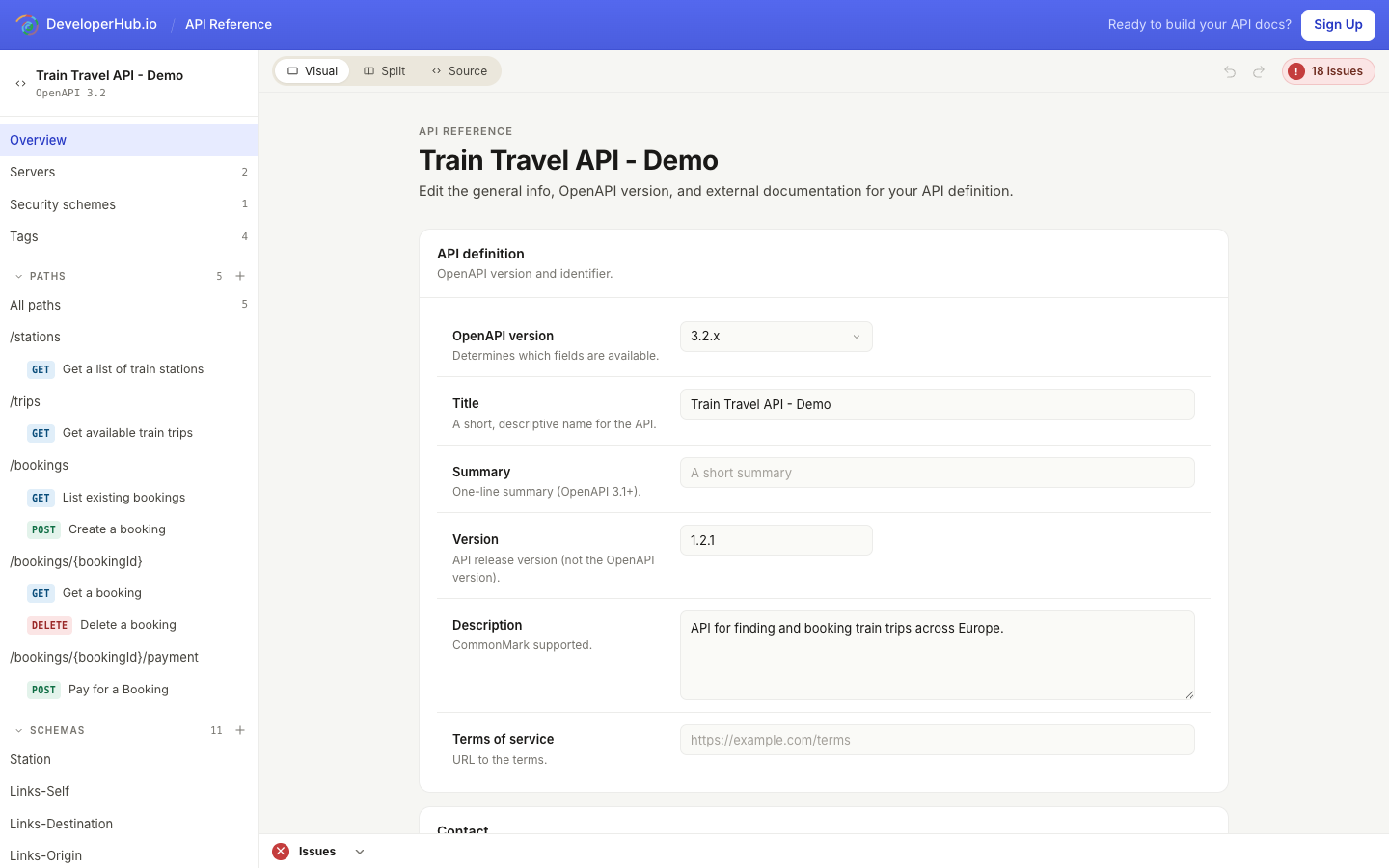
A segmented control at the top of the editor switches between three views. Your choice is remembered across sessions.
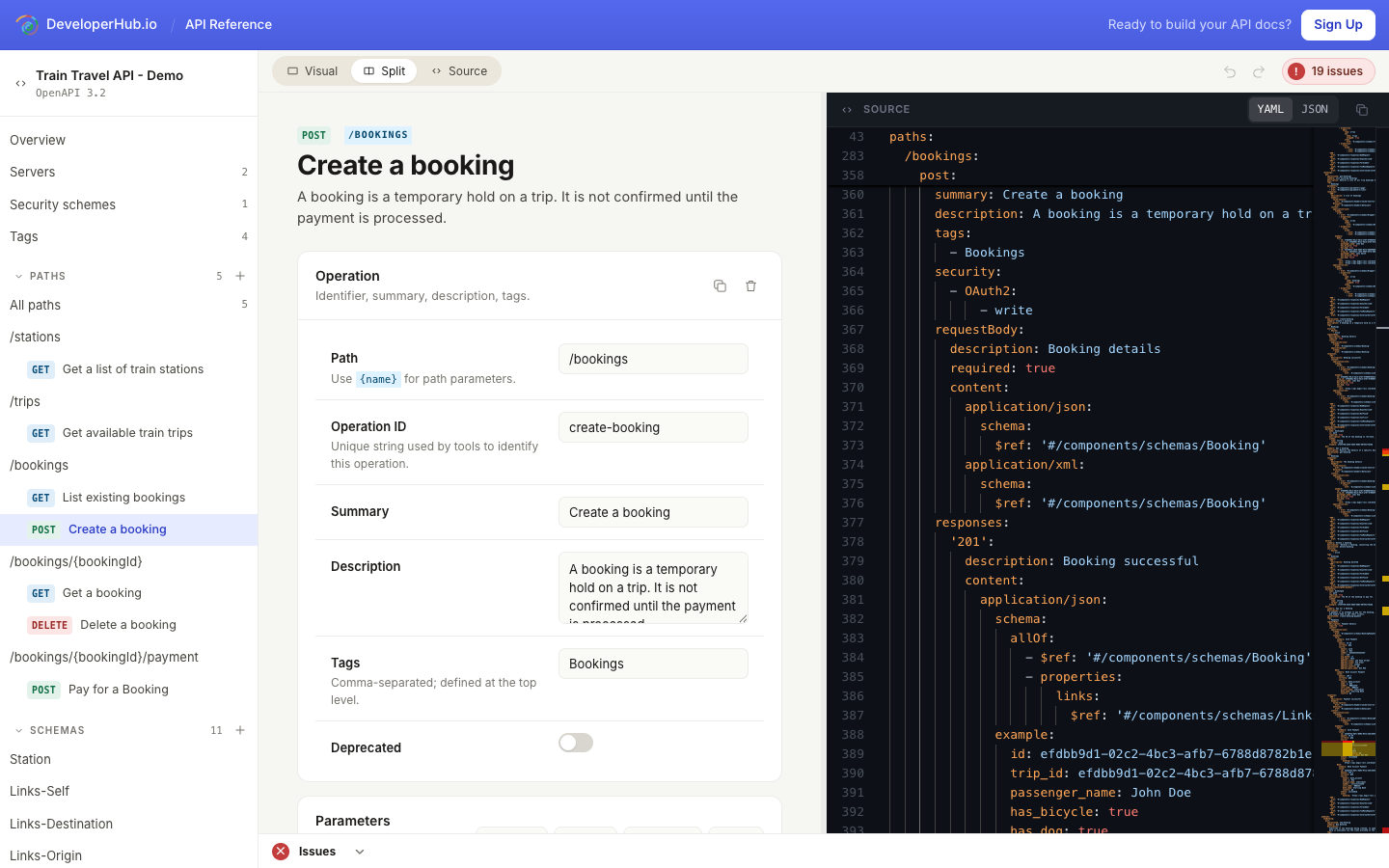
Visual: the default. A form-driven editor with a left sidebar that mirrors your OpenAPI document: Overview, Servers, Security schemes, Tags, Paths, Schemas, and Components. Edits flow straight into the underlying spec.
Split: visual form on the left, syntax-highlighted source on the right, with a draggable gutter between them. Changes on either side update the other.
Source: the full canvas becomes a Monaco editor with YAML or JSON, line numbers, and error squiggles. A YAML/JSON toggle and a Copy button live at the top of the pane.
Swagger 2.0 references open directly in Source. The visual editor covers OpenAPI 3.x only.
Editing in the Visual Editor
Pick a section from the left sidebar; the matching form loads in the main area.
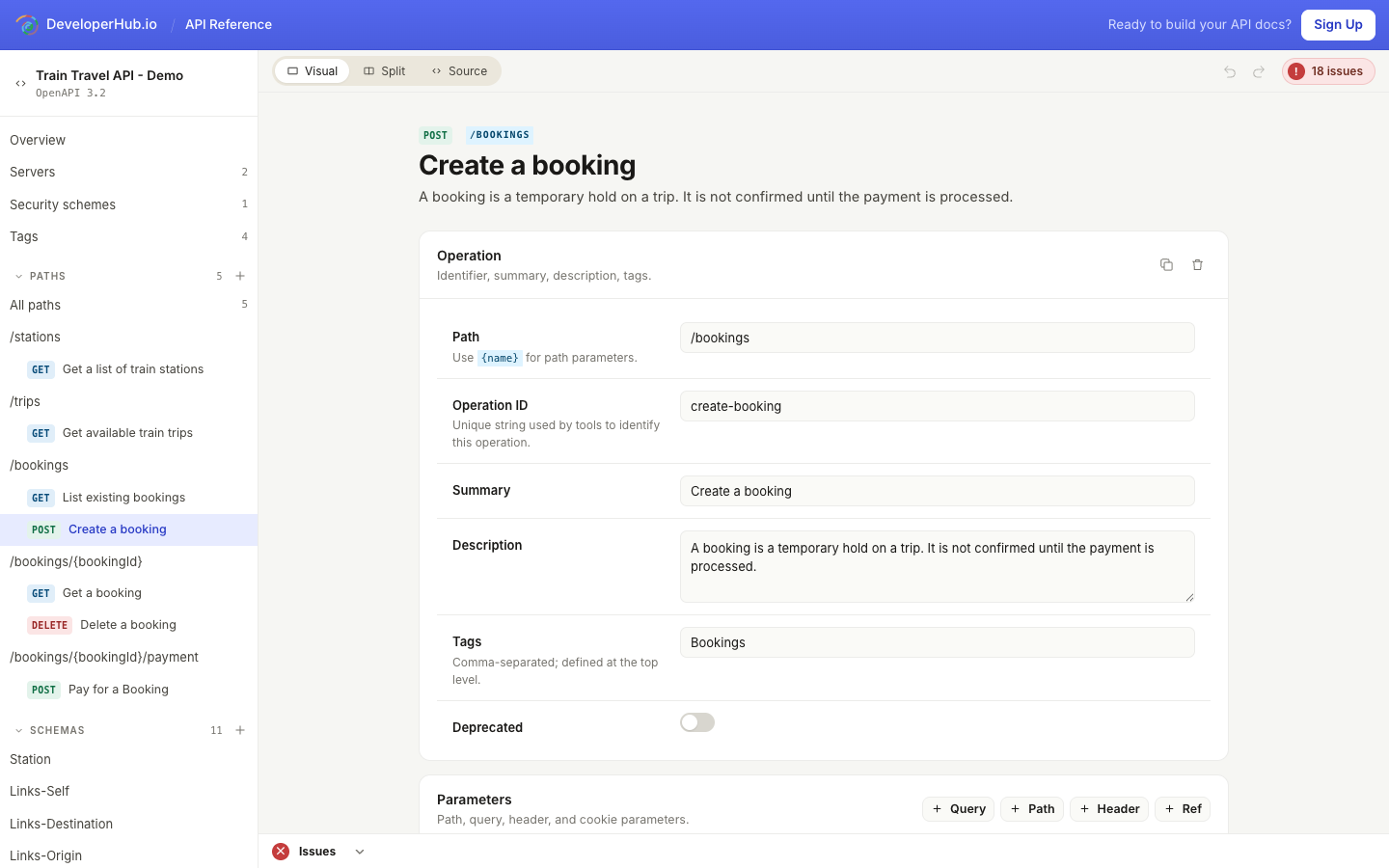
The visual editor covers the whole spec:
Overview: title, summary, version, description, terms, contact, license (with SPDX identifier autocomplete on 3.1+), and external documentation.
Servers: server URLs with templated variables (default, description, enum).
Security schemes:
apiKey,http,oauth2,openIdConnect, andmutualTLS, plus the document's default security requirements.Tags: name, description, and external docs per tag.
Paths: list of all paths and the methods defined on each. From here you add paths or jump to a path landing view to add operations.
Operation pane: identifier, summary, description, tags, deprecated flag, parameters (query/path/header/cookie/$ref), request body (multiple media types, examples), responses (status code, description, headers, content), and per-operation security overrides.
Schemas: a recursive editor for
components.schemas. Covers objects, arrays, primitives, formats, enums,nullable,$ref,allOf/oneOf/anyOf/notcompositions, anddiscriminator.Components: editors for
responses,parameters,examples,requestBodies,headers,links,callbacks, andpathItems.
Schemas
The schema editor renders any JSON Schema, however deep, with inline property rows, type and format dropdowns, required toggles, and one-click drill-down into nested schemas.
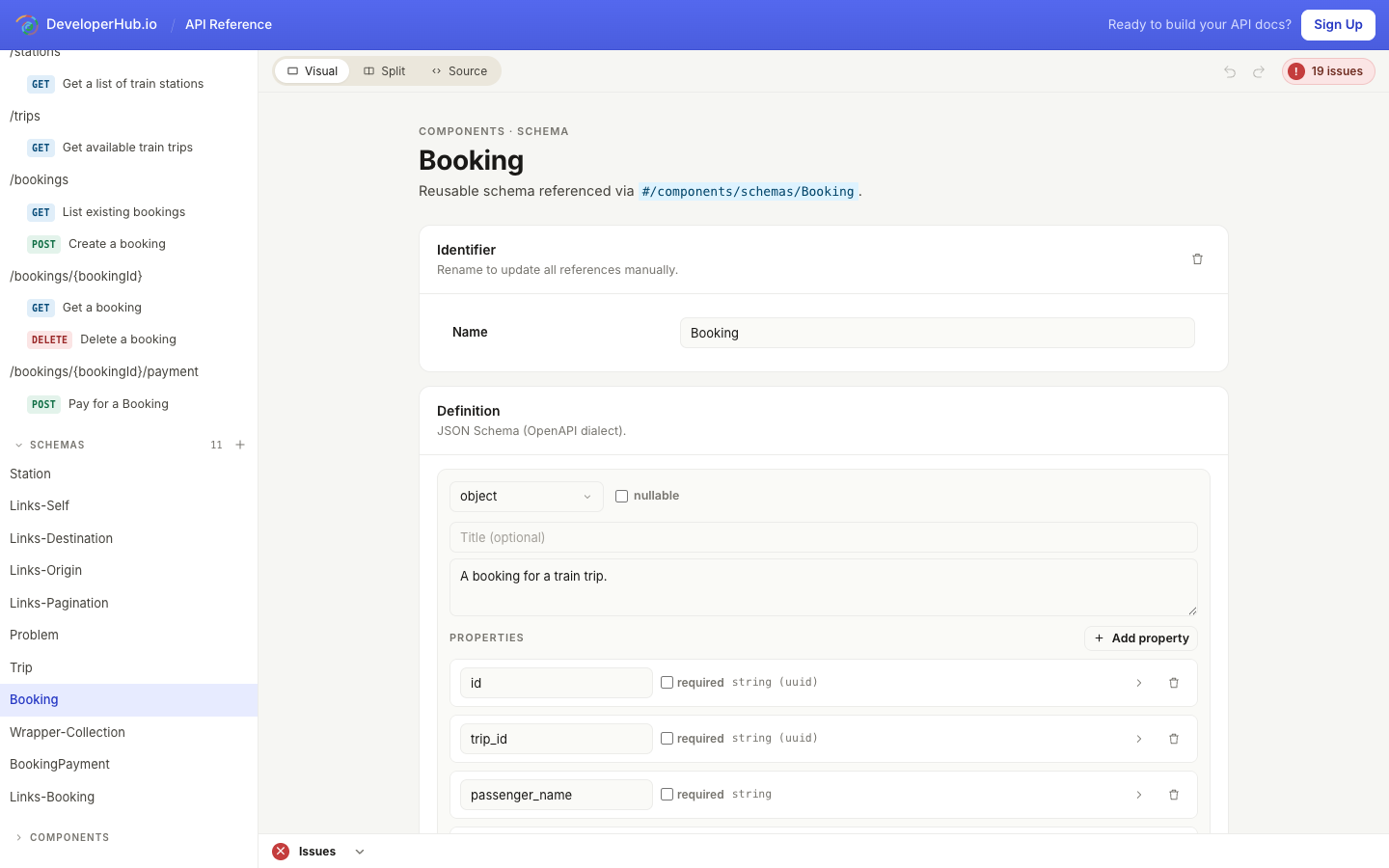
Renaming a schema updates its display in the sidebar, but $ref paths elsewhere in the spec still point at the old name. Update those references manually.
Navigating a Large Spec
Two shortcuts make big definitions easier to move around:
Quick Switcher: press ⌘ + K (or ⌃ + K on Windows and Linux) to open a search palette over the whole document. Type to filter sections, paths, operations, schemas, and components, then jump straight to one.
Jump to definition: wherever a
$refis used (a parameter, response, header, or schema), the editor shows the referenced definition inline and gives you a link to jump to it. This works across operations and components so you can follow a reference to its source in one click.
Descriptions throughout the visual editor render their Markdown, so formatting, links, and code spans appear as readers will see them.
Undo / Redo
The toolbar shows Undo and Redo buttons whenever you're editing in Visual or Split mode.
Editing in Source
Click Source to take over the canvas with a full-width Monaco editor. Use the YAML / JSON toggle at the top of the pane to flip formats; the editor reserialises for you.
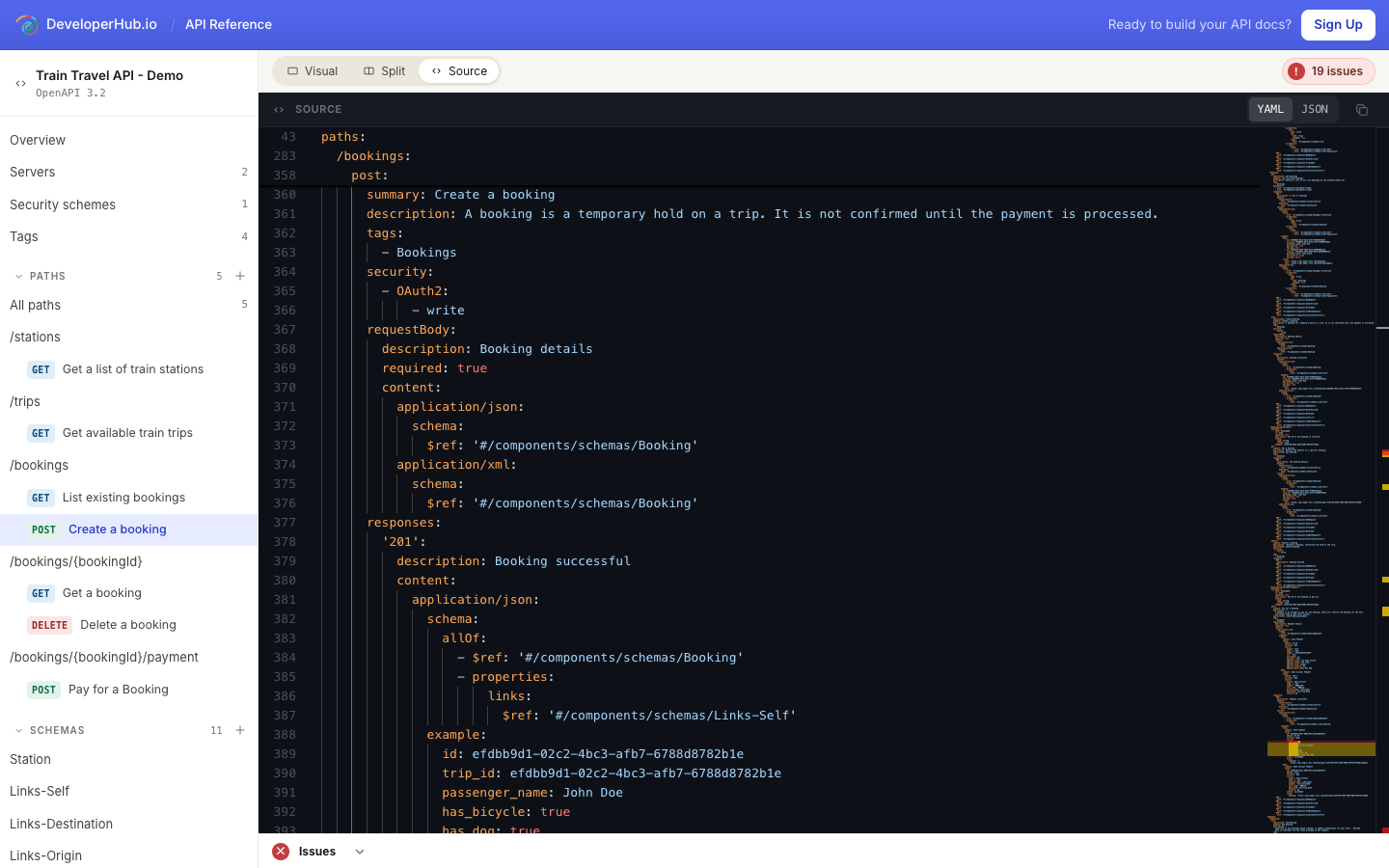
Switching back to Visual parses your buffer. If the source has a syntax error, the editor keeps the last valid state and shows a dismissable banner with a Return to source button so you don't lose your work.
Split View
Split shows the visual form on the left and the source on the right. The gutter between them is draggable; double-click it to reset to 50/50. The model is the source of truth: visual edits reserialise into the source pane, and source edits parse back into the model when you switch away from Source.
Linting and the Issues Panel
The editor lints your spec continuously against the OpenAPI specification, regardless of view. The pill on the right side of the toolbar shows the current count:
Green ✓ 0 issues: clean.
Amber ! N warnings: warnings only.
Red ! N issues: at least one error.
A dock at the bottom of the editor always shows an Issues header. Click the pill or the chevron on the header to expand it and see the list. The panel tracks your preference in localStorage, and will auto-expand once on first load if there are any errors.
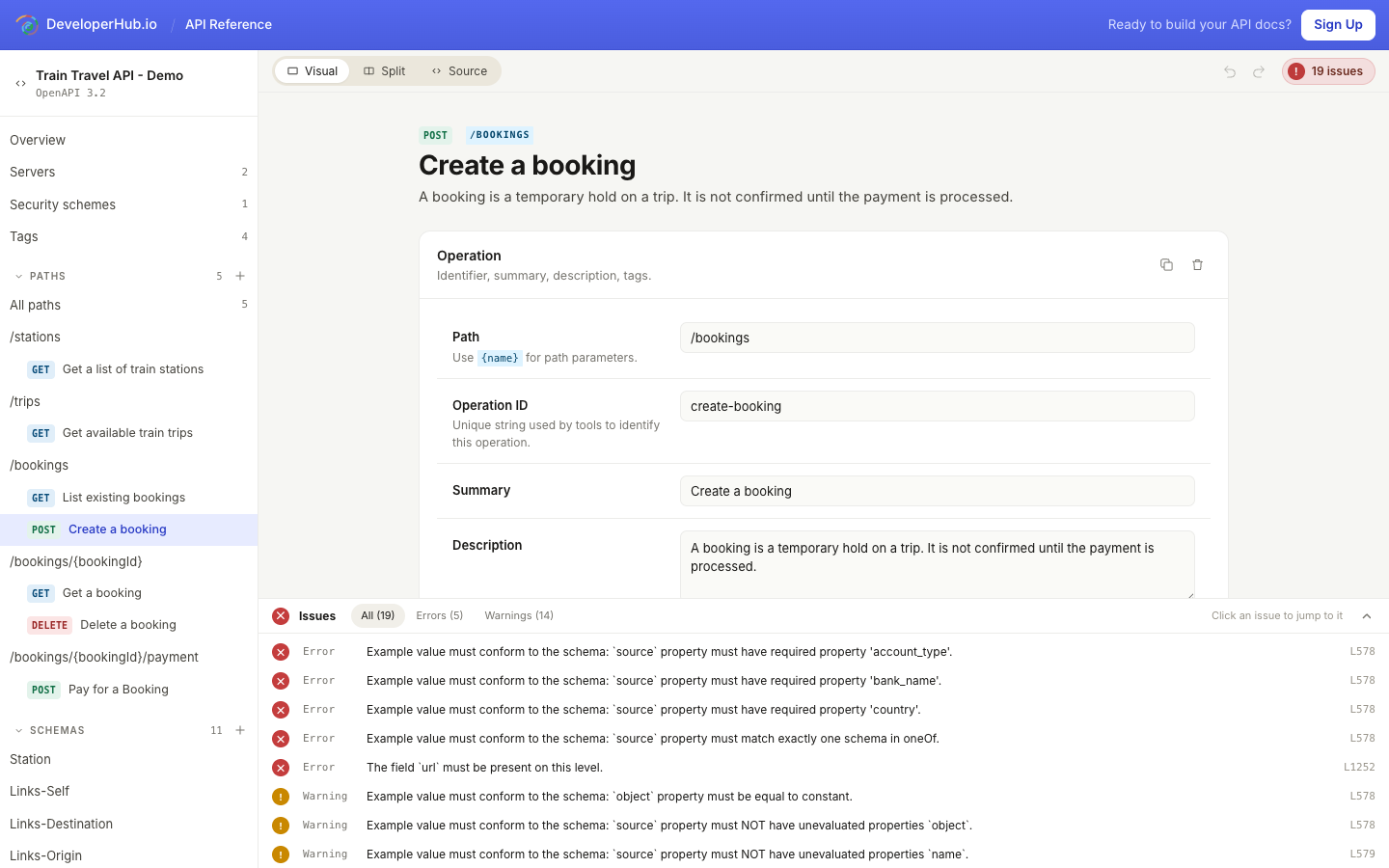
Filter by All / Errors / Warnings at the top. Click any issue to jump to the offending line. If you're in Visual, the editor flips to Source automatically and scrolls the line into view. Source mode also renders the issues inline as red and amber squiggles.
AI Agent
The API Editor has a built-in AI Agent that edits your OpenAPI spec for you. Describe what you want in plain language and it proposes the changes; you review them before anything is applied.
Open it with the Ask AI button in the editor toolbar. The panel suggests a few quick actions to get started:
Fix all issues: resolve the errors and warnings the linter found.
Add an endpoint: describe a path and operation to add.
Upgrade OpenAPI version: migrate the document to a newer OpenAPI version.
You can also fix a single linter issue with AI: each row in the Issues panel has a Fix with AI button that scopes the agent to that one issue, and when the same rule appears more than once you can fix every occurrence at once.
Reviewing AI Changes
The AI Agent never edits the spec silently. When it proposes changes, they open as Proposed AI changes in a diff over the source pane, so you can see exactly what is being added or removed. Choose Accept all to apply them, or Reject to discard them. Accepted edits go through the same undo/redo history as your own, so you can always step back.
The AI Agent is scoped to the API reference you are editing. It reads the current spec before suggesting edits, and it declines requests that are not about this API reference.
Editing an Existing API Definition
To edit a definition that's already in your DeveloperHub project:
In the editor top navigation, open the section menu and choose the API reference from the API Reference group.
Once the API reference has loaded, click Edit in the bottom right. The API Editor opens in a new tab.
Make your changes. Click Save Draft in the top right when done.
Edits go into a draft. To publish, return to the API reference inside the editor and click Publish.
Creating a New API Definition
To start from scratch:
In the editor top navigation, open the section menu.
Click + New API reference.
Choose Create from scratch. The API Editor opens in a new tab with an empty OpenAPI 3.x document, ready to edit.
To import an existing file instead, see Importing References.
Saving and Publishing
The Save Draft button is in the top right of the editor. The label changes to Saved when your draft is up to date, and back to Save Draft as soon as there are unsaved changes. You can attach an optional commit message before saving.
Saving stores a revision; every edit is preserved. Publishing the API reference (from inside DeveloperHub) promotes the latest draft so it becomes visible to your readers.
Generators
If you'd rather generate the OpenAPI file directly from code so it stays in sync with your codebase, these generators produce specs from source:
Javascript: swagger-jsdoc
Express: swagger-express
PHP: swagger-php
Symfony: NelmioApiDocBundle
Django: django-rest-swagger
Flask: flask-restplus
Ruby On Rails: openapi-rails
Go: go-swagger
Spring: springfox
You can also use our API to upload references programmatically.