 Made in DeveloperHub
Supercharged plans give you much more benefit than free plans. To see all the plans available, go to Pricing. A supercharged plan is any paid plan.
Upgrading to a Supercharged Plan
Plans are subscribed to, and are paid for per project per month. To upgrade your project to a supercharged plan:
In the editor top navigation, open the project menu and make sure you have selected the correct project to upgrade.
Open Project Settings → Plan & Usage.
Click Upgrade plan .
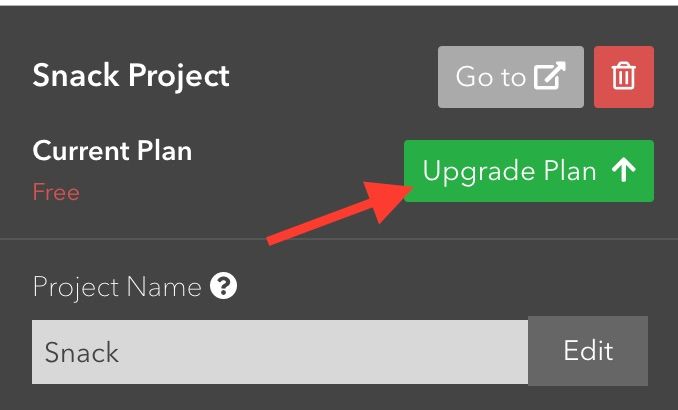
A pop-up will show outlining every available plan's features. Select the plan you need.
Fill out the payment form. If payment succeeded, a notification will show to get you started on your supercharged plan.
If payment did not succeed, an error message from the payment provider (Stripe) is shown.
We accept payment through debit/credit cards. For enterprise plans, we offer payment through bank transfers as well.
AI Credits
Project Settings → Plan & Usage also holds the project's AI credits: what is left of this month's allowance, when it renews, and how to top up.
Cancelling or Downgrading a Supercharged Plan
To downgrade a project's supercharged plan:
In the editor top navigation, open the project menu and make sure you have selected the correct project to downgrade.
Open Project Settings → Plan & Usage.
Click Manage plan .
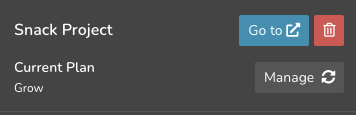
A pop-up will show outlining every available plan's features and the free plan. Select the plan you need, or the free plan to cancel your subscription.
Click on Downgrade to take effect.
Changing Payment/Billing Details
If your payment method has changed, or you wish to add more information to the invoices, then you may update your billing details by:
Open Project Settings → Plan & Usage.
Click Manage plan .
In the bottom right corner, click View invoices / Update card.
You will be taken to the payment provider's portal to make the changes needed.
View Invoices
To view all invoices that you have paid:
Open Project Settings → Plan & Usage.
Click Manage plan .
In the bottom right corner, click View invoices / Update card.
You will be taken to the payment provider's portal to view the invoices.