 Made in DeveloperHub
Adding comments to pages and references is a useful way to record additional details, and collaborate with team members.
Why Use Comments?
Comments help you discuss changes with teammates, capture decisions, and leave notes for later. Teammates you tag can be notified automatically, so review conversations stay attached to the relevant content.
Comments on Pages
On documentation pages, comments are added directly on the text and anchored to the selected content.
Add a Comment on a Page
Highlight the text you want to comment on.
Select Comment in the toolbar.
Type your comment.
Your comment will appear on the right-hand side of the page, aligned with the text you commented on.
View and Navigate Comments on a Page
Comments display in a right-hand column next to the page content.
Because comments use the right side of the layout, the table of contents may be hidden while comments are visible.
View Options
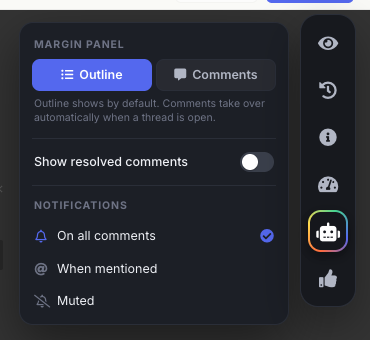
Use View options in the right sidebar to control what you see:
Margin panel: choose what shows in the right margin. Outline (the table of contents) shows by default; switch to Comments to keep the comment thread in view. Comments take over automatically when a thread is open.
Show resolved comments: toggles whether resolved comments are shown.
Notifications: set how you are notified about comment activity on the page (covered below).
Comments in API References
API references continue to support comments associated with specific parts of the reference. When you highlight text and write a comment, the comment is associated with that exact part of the API reference. Comments can be associated to:
API reference description
Authentication schemes
Servers
Tags
Operations
Operation requests
Fields in operation requests
Operation responses
Fields in operation responses
When a teammate clicks on a comment, the associated part will be highlighted.
Tagging Teammates
To tag your teammates in a comment, start by typing an @ character. A list of all teammates will be available to choose from.
You and anyone you tag in comments will become a watcher of that page's comments.
Resolve Comments
Once you are done with a comment, you may resolve it to hide its details. Resolving a comment would notify the watchers of the resolution status.
Publishers and admins can resolve all comments at once.
You may setup Ask before Publishing if you wish to only publish if all comments are resolved.
Notifications
You can control how you are notified about comment activity on a page. Open View options in the right sidebar and set Notify to one of three states:
On all comments: you are a watcher and receive e-mails summarising every change in the page's comments.
When mentioned: the default. You are notified only when someone tags you, and you become a watcher automatically once you comment on the page or are tagged in it.
Muted: you receive no notifications for the page.
Once you comment on a page, or get tagged in one, you become a watcher of that page. To stop notifications, set Notify to Muted; to follow everything again, set it to On all comments.
You may also unsubscribe from all activity notifications from the User Settings.