 Made in DeveloperHub

Translation uses AI to publish your docs in more than one language. You write and publish in one language as you do today, and AI translates each published page into the languages you choose. Readers switch language with the language picker in your docs.
Translation is a paid add-on to your plan. See Pricing.
Languages
Your docs can be written in any of these languages and translated into the others:
Language | Translated pages live under |
|---|---|
English |
|
Spanish |
|
German |
|
French |
|
Portuguese (Brazilian) |
|
A translated page keeps the slug of the original, so /getting-started becomes /es/getting-started. Your source language keeps the URLs it has today.
If you need a language that is not listed, contact us.
Adding Translation
Open Project Settings → Billing → Plan & Usage, and select Add Docs Translation.
On an enterprise plan, Translation is a term of your contract instead. Contact Us to add it.
Translating Your Docs
Open Project Settings → Content → Translation.
Under Source language, choose the language you write in.
Under Translate into, switch on each language your readers can switch to.
Optionally, write instructions for the AI.
Select Check pages. The first time you translate into a language, you preview 3 pages beside the original and mark each one Looks good. Nothing is published until you start translating.
Select Start translating. You see what will be translated, roughly how many words that is, and what it costs.
A large site can take up to 24 hours. We email you when a language's first translation is done.
Instructions
Under Instructions, tell the AI about your product, your terms and your readers, in up to 2,000 characters. For example:
Keep these product names in English: Acme Cloud, Acme CLI.
Use Colombian Spanish, and address the reader as usted.
Translate "Key" as "Llave".
Saving a change to the instructions translates every page again. To try them out first, use Preview translation in the same pane: pick a published page and a language, and read the result beside the original.
Keeping Translations Up to Date
Each time you publish a page, it is translated again, usually within a few minutes. Readers see the previous translation until the new one is ready. Drafts are never translated.
The Status card in the Translation pane shows how far each language has got, and lists any page that failed with the reason. Select Retry failed pages to try them again. Until a failed page is translated, readers see it in your source language.
What Is Translated
Pages, and the titles of sections, categories and API references in the navigation.
API references, except parameter names, values and examples.
Changelog posts.
Landing page and custom page text.
Synced blocks.
Code and custom HTML stay exactly as you wrote them.
Translations are kept in DeveloperHub. They are not written to a synced GitHub repository.
Leaving a Section Out
To keep a documentation section or API reference in your source language only:
Open Manage Sections (section menu → settings cog).
Select the documentation section or API reference.
Under Translation, switch off Translate this section (or Translate this API reference).
Its pages then show in your source language whichever language a reader picks.
What Readers See
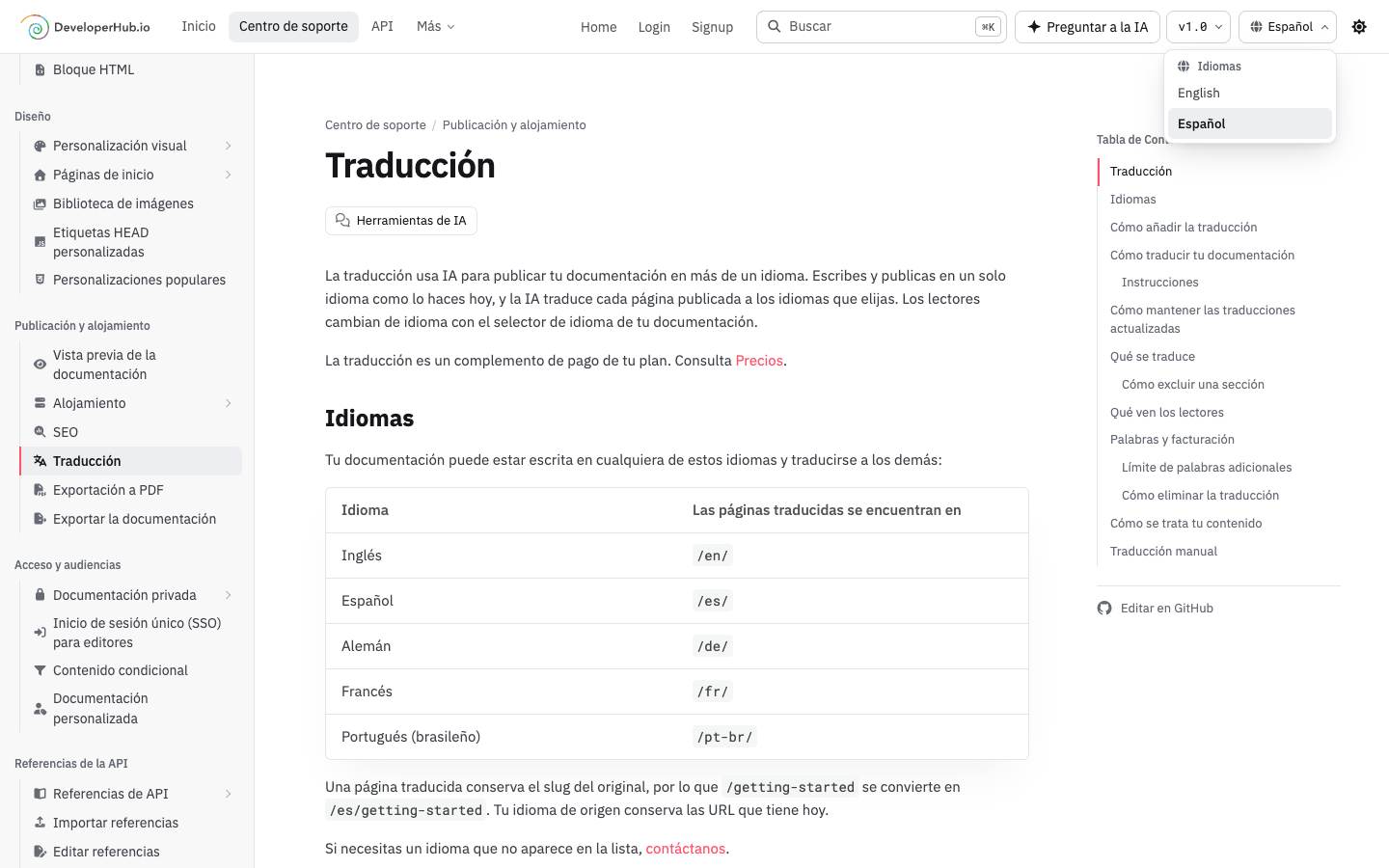
The language picker in the top bar lists each language and keeps the reader on the same page. Readers are not redirected by their browser's language.
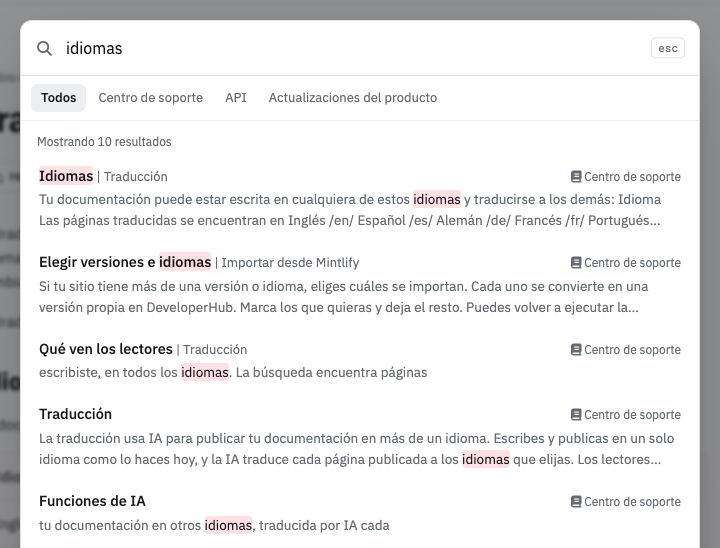
The reader interface, such as search and feedback, is in the reader's language. Any UI text you changed stays as you wrote it, in every language.
Search finds pages in the reader's language, and AI Assistant answers in it.
Your sitemap lists each language's pages and links each page to its other languages, so search engines can send readers to the one in their language.
Words and Billing
The add-on includes a monthly allowance of translated words. When it is used up, translation pauses until the next period, unless you set a limit for extra words. See Pricing.
Each word counts once for each language it is translated into. A page you publish again counts again in full, and so does every page when you change the source language or the instructions. Previews count too. Project Settings → Billing → Plan & Usage shows the words translated so far this period.
Translation does not spend AI credits.
Limit for Extra Words
To keep translating past the allowance, set Limit for extra words under Docs Translation in Plan & Usage to what extra words may cost each month. They are billed on your next invoice.
While translation is paused, pages you have not changed keep their translation, but a page you edit shows in your source language until translation resumes.
Removing Translation
Select Remove Docs Translation in Plan & Usage. Your docs are then shown in your source language only, and translated URLs stop working. Your Translation settings are kept.
How Your Content Is Handled
Pages are translated by AI. See How your data is handled for where your content goes and how long it can be kept.
Translating Manually
To translate your docs yourself instead, create a documentation section for each language, such as Guides (EN) and Guides (ES), and set each one's interface language in UI Translation.