 Made in DeveloperHub
Search is one of the main ways readers discover documentation. DeveloperHub is built to be crawlable and indexable out of the box, with sensible defaults and a small set of project-level controls.
Optimised for SEO
DeveloperHub documentation portals are optimised for SEO by default:
Clean, stable URLs
Semantic structure and headings
Canonical URL support to reduce duplication (especially with versioning)
Bot-friendly rendering for indexing and SEO tooling
We cache bot-rendered pages every 7 days for fast serving to search engines and SEO software.
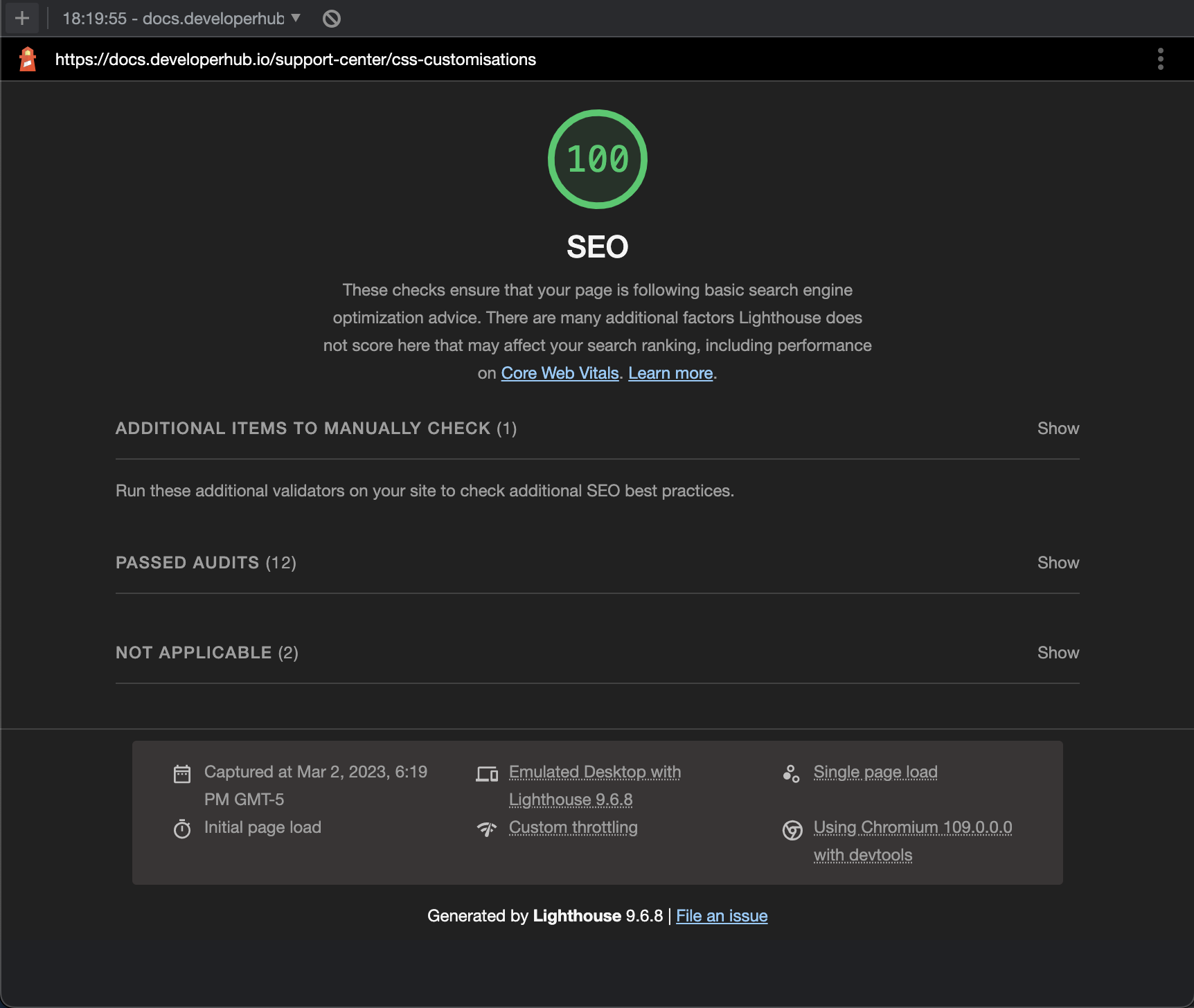
Our pages typically score highly on Google Lighthouse SEO audits:
Page Structure and Headings
Pages use semantic headings:
The page title is the H1.
Additional headings (H2, H3, etc.) are used as authored in the editor.
This helps search engines understand the content hierarchy.
Titles, Descriptions, and Social Previews
This section covers the most common questions about how metadata is derived and what you can customise.
Title Tag (Browser Tab Title)
The <title> tag is controlled globally using seo.titleFormats in Advanced Settings.
By default, it uses the format:
%page% - %project%
Meta Description
Each page can override its meta description from Page Info (right sidebar), under the Settings tab.
By default, the meta description is taken from the first paragraph on the page.
You can also generate a description from Page Info → Settings → AI Generate. For more details, see AI SEO Helper.
Social Preview Image (Open Graph Image)
When a documentation link is shared (for example in Slack), the preview image is determined automatically:
If the page contains an image, the first image on the page is used.
If the page contains no images, the project logo is used.
Sitemap and robots.txt
DeveloperHub provides standard discovery endpoints at the root of your docs site:
/robots.txt/sitemap.xml/sitemap.txt
Where to find them depends on how your docs are hosted. Examples:
Custom domain without a base path:
https://<custom-domain>/sitemap.xml
Custom domain with a base path:
https://<custom-domain>/<base-path>/sitemap.xml
DeveloperHub subdomain:
https://<subdomain>.developerhub.io/sitemap.xml
If you are hosting under an existing website, the sitemap and robots endpoints live under the documentation base path on the custom domain (and are also available on the subdomain).
Sitemaps are generated every 6 hours.
Search Console (Custom Domains)
If you are using a custom domain, create a property in a search engine’s Search Console (for example Google Search Console). This provides crawl diagnostics, indexing status, and query performance for your documentation.
Project Settings That Affect SEO
These settings live in Project Settings and are the main switches that affect indexation and canonical behaviour.
Enable or Disable Search Indexing
If you do not want the documentation visible on search engines, turn off Allow search-engine indexing in Project Settings (Hosting).
Canonical URL Strategy for Versioned Docs
By default, DeveloperHub treats the short URL (without the version slug) as the canonical URL.
If you want canonical URLs to include the version slug, enable Canonicalize Short URL Form in Project Settings (Hosting).
If you want only the default version indexed, enable Only Index Default Version in Project Settings (Hosting).
Additional Meta Tags
If you need to add custom verification tags or additional SEO-related meta tags, see Custom HEAD Tags.
Troubleshooting
SEO Software Suite Shows That All Pages Are Empty
DeveloperHub renders pages differently for readers vs bots. Bots include indexing spiders, site verification bots, SEO software spiders, and AI agents.
To view how a bot sees a page, add ?_escaped_fragment_= to the end of the URL.
Example:
Reader URL:
https://docs.developerhub.io/support-center/getting-startedBot URL:
https://docs.developerhub.io/support-center/getting-started?_escaped_fragment_=.
This does not harm SEO. It ensures crawlers receive a fully rendered HTML snapshot.
We support major search engines and common SEO tools. If your SEO software appears unsupported, configure it to use a known spider user agent such as googlebot, or contact us to add support.
When I Inspect the Page Source, the Page Is Empty
See the troubleshooting tip above. To view rendered content, either:
Use your browser DevTools and inspect the DOM in the Elements tab, or
Append
?_escaped_fragment_=to the URL and then view source.
Search Engine Reports 404s
If you use middleware (for example Cloudflare) in front of the docs site, it may interfere with serving bot-rendered pages. Disable the middleware for the docs site if possible, or configure it to preserve bot rendering behaviour.
Getting a 403 or an Unexpected Bot Result
If you use a firewall, it may block our SEO renderer. Whitelist the user agent DeveloperHub.io SSR.
Search Engine Shows "Unable to Load Project"
This can happen when the docs are cached by middleware without varying by user agent. DeveloperHub serves different responses depending on whether the user agent is a reader or a bot.
Configure caching to vary by user agent, or disable caching for the docs site.