 Made in DeveloperHub

Along with code generation, each API Reference has settings which you can manage. To open them, open Manage Sections and select the API reference from the left list; its settings appear on the right as toggles. Most sit in the Display card; the playground and OAuth2 toggles sit in the API Playground card. Changes save as soon as you flip a toggle.
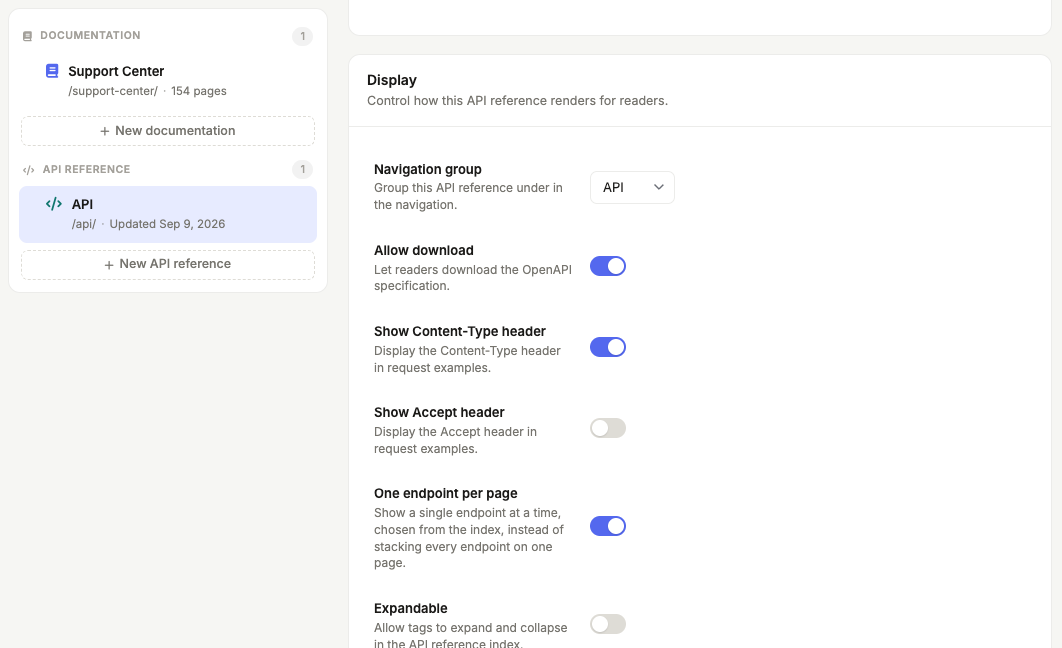
Allow Download
The Allow download toggle allows the API Reference to be downloadable by showing a button at the top of the page.
Show API Playground
The Show API Playground toggle, in the API Playground card, enables the API Playground to test APIs right from the API Reference. The OAuth2 authentication toggle next to it adds OAuth 2.0 authentication to the playground.
Show Content-Type Header
For operations (OAS3 only) that have request body, turning on Show Content-Type header shows a header in the example defining the content-type. For example:
Show Accept Header
For operations (OAS3 only), turning on Show Accept header shows a header in the example defining the accepted response media type. For example:
One Endpoint Per Page
Off by default, which stacks every endpoint on a single page. When One endpoint per page is on, readers see one endpoint at a time instead. The API Reference opens on an overview of its title, description, servers and authentication, followed by each tag with its description and links to the endpoints under it. Choosing an endpoint, from either the index or the overview, gives it the page to itself.
URLs are unchanged, so existing deep links, search results and any links you have shared still land on the same endpoint.
While this is on, Expandable (Allow Tags to Expand) has no effect, since only one endpoint is ever on screen.
Allow Tags to Expand
If your API Reference is dense, loading thousands of items could be slow. To optimise for performance, you can turn on the Expandable toggle to allow tags to expand. By allowing tags to expand, you can load an API Reference of any size without performance hit.
When tags are allowed to expand, only the first tag opens. Every other tag shows its description alongside a table of the operations available under it, and a Show button to expand its operations.

Allow Index to Collapse
When Index collapsible is on, the tags in the index are collapsible.
Auto-Capitalize Tags
When Auto-capitalize tags is on (default), the tags will be auto-capitalized with an uppercase for every word.
Show Request Example Code Samples
Show request code samples is on by default. When off, only an example URL or request body is shown, instead of allowing the reader to pick a code library to see a code sample.