 Made in DeveloperHub

Linking to pages (cross-referencing) is very powerful. It ensures that the pages hierarchy is always correct by automatically updated references as your documentation scales and changes. Linking to pages applies between pages in one version.
You can link to a page or to an API reference - everything written here applies for both.
Why to Link Pages?
When a page is linked inside a version:
The link will follow the page regardless of changes in documentation or page name.
On cloning versions, the link will follow the page in the new version.
You will be notified if a link breaks because a page was deleted.
When a Page Moves or is Renamed
Change a page's slug, rename a documentation, or move a page to another documentation, and every link to it is updated for you. Move a parent page and links to its subpages follow too.
This fixes the links inside your documentation. It does not leave a redirect behind, so anyone reaching the old URL from a bookmark, an external site, or a search result will land on your 404 page. Worth weighing before you change the slug of a page that already ranks.
Only links made with page linking are updated. A full URL you paste in as an external link is left exactly as you wrote it, so it will break when that page moves.
How to Link Pages?
To create a link between pages, type @ to open the pages selector.
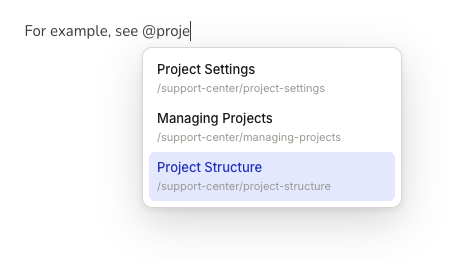
A list of all pages under the version will be listed for you to choose from. Search through the list by typing down the page name or slug. To select a page, click on its name in the list. If you are selecting an API Reference, then you'll find the title of the API Reference.
Alternatively, you can also link to an internal page by highlighting text and clicking on the link icon.
External links in the editor show with a top-right pointing arrow so you can tell them apart from page links. The arrow will not show in live mode.
Changing Link Title/Specifying Heading
After selecting the page, you will be prompted to optionally link to a specific heading if you selected a page, or link to a specific operation if you selected an API reference.
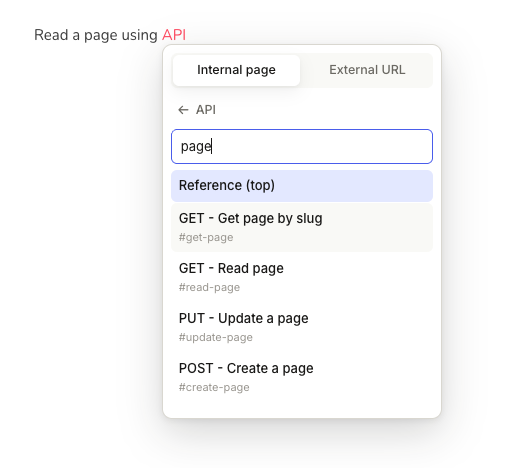
If you want to jump to a certain heading in a page, you can specify it. Start typing to find a heading in the page you selected, or click on the arrow to view all. Leaving Heading empty will default to jumping to the title of the page. The same goes for API references, where you can select a specific operation to jump to.
Once you select a heading/operation, its URL fragment will appear. A fragment is the part of the link that is after the hash sign # . For example, the link https://pied-piper.developerhub.io/v1.0/middle-compression/intro#how-to-use has the fragment how-to-use.
Fragment can only contain alphanumeric characters and hyphens.
We do not monitor changes to the headings/operations. If a heading/operation is changed, then you should create the link again.
To open a link's target while editing, click the link to bring up its toolbar, then use the open control or hit ⇧ while clicking on it. A modifier-click (such as ⌘ / ⌃ or ⇧) opens it in a new tab.
Analyse Links
Analysing links helps you understand the links that are:
Broken because the linked page/reference was deleted.
Leading to an unpublished page/reference from a published page.
Have an internal DeveloperHub link, instead of a link to your published docs.
Listing Broken Links
Link analysis runs automatically every time a page loads in the editor. If the page contains links with issues, a banner under the navigation bar says how many are broken and how many may not work for readers. Click Fix links (or Review links when there are only warnings) to see them.
Links with issues are also underlined in the editor:
Orange underline indicates a warning or lower-severity issue.
Red underline indicates a higher-severity issue (for example, a broken or unreachable link).
Analyse Links for Entire Version
You can analyse all links in a version at once by:
Open Manage Versions (version menu → settings cog).
Select the version.
In the Lifecycle card, next to Check broken links, click Check links. The Analyse links dialog lists every broken link and link warning, grouped by section.
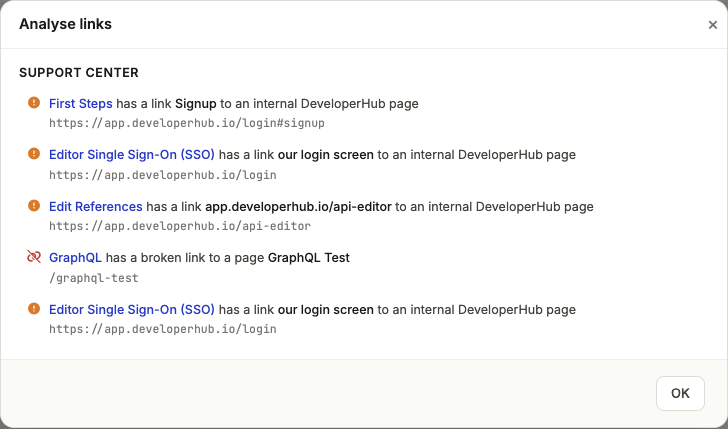
View Broken Links in a Page
To view all the links analysis in a page, either click the banner's button or the badge, or:
From the right sidebar, open Page Info .
Open the Links tab and review the broken links and issues under Link issues.
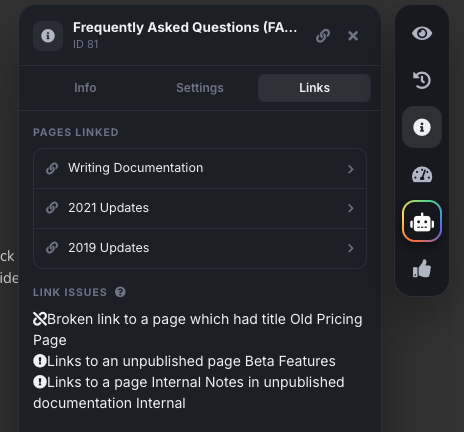
Every broken link will show you the title and the heading (if any) that it had before breaking. The list also shows the current text of the link so you are able to find it and fix it.
Under Link issues, click an issue to view the link it refers to.
Broken page links lead to 404 Page.
Only internal links created by using Page Linking are examined for breaking. The monitoring tool will not examine or alert about external links leading to 404.
Broken Links by Email
Broken links are also reported in the docs digest.
Listing Linked Pages (Backlinks)
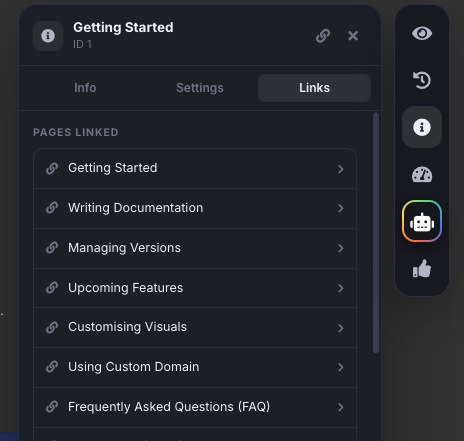
If you are planning to delete a page, or modify the page heavily, then you might want to know what other pages are depending on this page. To list all pages linking to the current page you are on:
From the right sidebar, open Page Info .
Open the Links tab. Linked pages load automatically.
Any linked pages are listed under Pages linked.
Page Permalinks
Permalinks are links that never change providing a reliable reference to a page.
To get a page permalink:
From the right sidebar, open Page Info .
Click the permalink button in the panel header.
The link will be copied to your clipboard.
Our permalinks have the following structure: https://<domain>/_permalink/<id>.
Permalinks are dependant on the custom domain used. If the custom domain changes, the permalink will not be valid anymore.