
Support Center
v1.0
Title
Message
Create new category
What is the title of your new category?
Edit page index title
What is the title of the page index?
Edit category
What is the new title of your category?
Edit link
What is the new title and URL of your link?
Formatting Text
AI Tools
Summarize Page
Copy Markdown
Open in ChatGPT
Open in Claude
Connect to Cursor
Connect to VS Code
There are three ways to format your text:
Using Toolbar
To format text in your documentation, highlight with your cursor the chunk of text you want to format. A toolbar like this one will show.
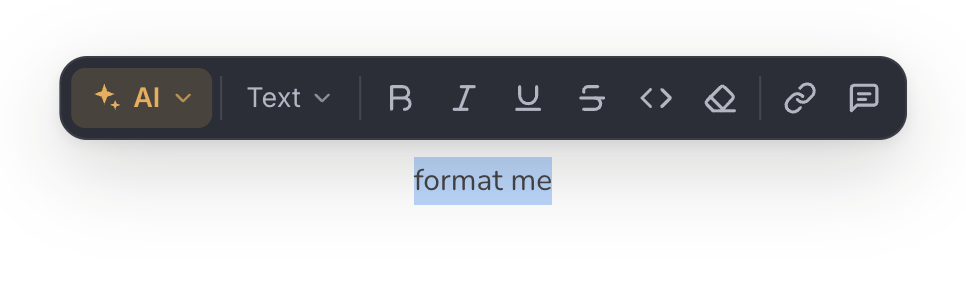
Using the toolbar you can do the following:
- Bold
- Italics
- External link
- Heading 2
- Heading 3
- Heading 4
- Unordered list
- Ordered list
- Inline code
- Comment
And you can use the AI Writer.
Tips & Tricks
HTML in Text
If you need to write down text that contains HTML tags, then you can do so if it is inserted as line code, as such:
<body><p>Hey</p></body>.
Ordered List Numbering
In case you interrupt the ordering of a list by adding a block, you can resume the ordering by typing on a new line the number, dot and a space, such as 5..
Furthermore, you can right-click on the number of the first item in an ordered list to change it.
Hungry for more?
If you need more formatting options, speak to us!
Type to search, ESC to discard
Last updated by Zaid Daba'een on Apr 9, 2025
Anything missing? Leave us feedback
Next to read:
Using MarkdownNeed help? Visit our community forums or contact us.
Discard Changes
Do you want to discard your current changes and overwrite with the template?
Archive Synced Block
Message
Create new Template
What is this template's title?
Delete Template
Message