 Made in DeveloperHub

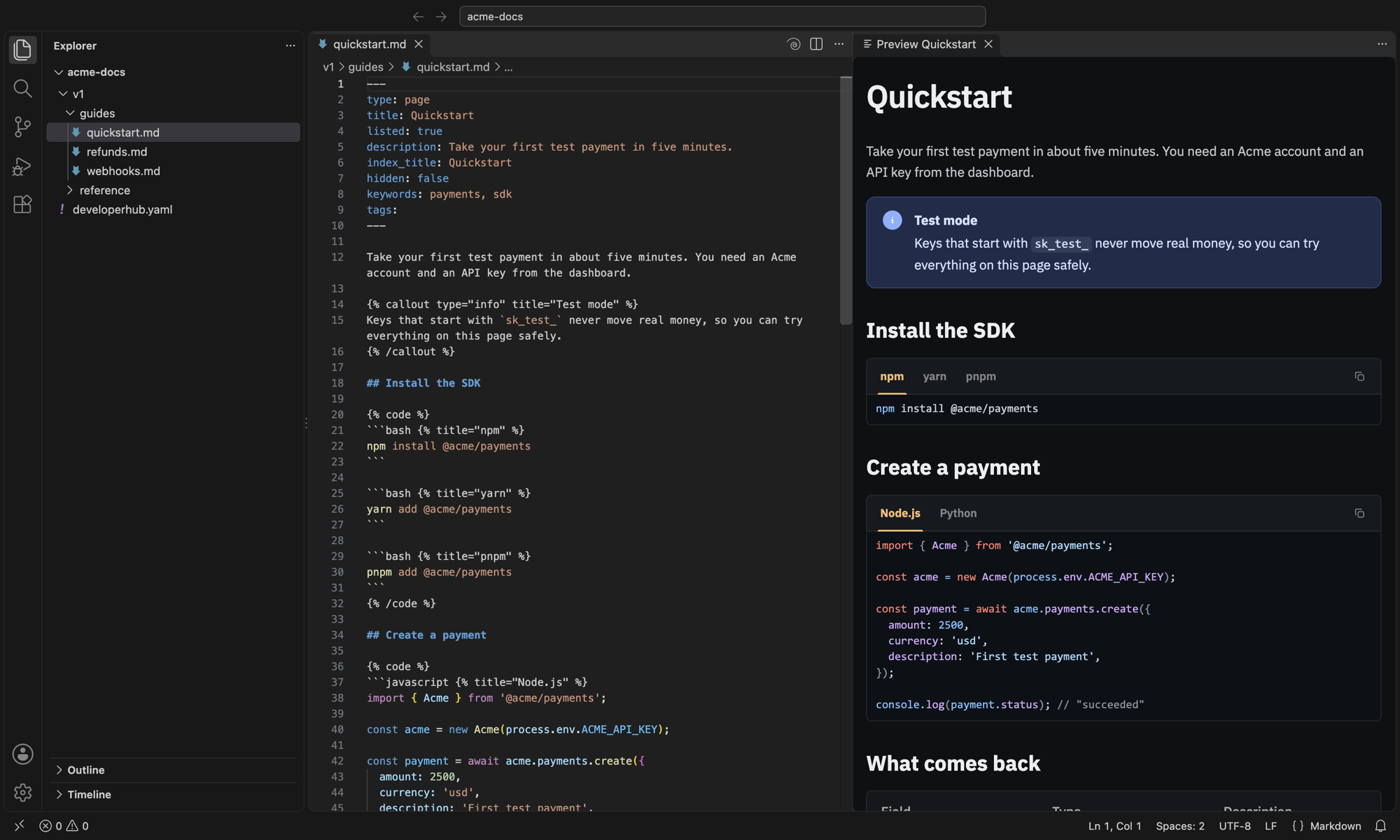
When you write your pages in a GitHub-synced repository, the DeveloperHub Preview extension shows each page the way your readers will see it, right beside the file you are editing. It updates as you type, before you save. It is available for VS Code and for JetBrains IDEs such as IntelliJ IDEA, PhpStorm, and WebStorm.
Installing the Extension
VS Code: open the Extensions view, search for DeveloperHub Preview, and click Install. You can also install it from the Visual Studio Marketplace.
JetBrains IDEs: open Settings → Plugins → Marketplace, search for DeveloperHub Preview, and click Install.
Opening the Preview
Open your synced repository, then open a page in it (any .md file below the folder holding developerhub.yaml).
VS Code: click the DeveloperHub icon in the editor title bar, or run Open DeveloperHub Preview to the Side from the Command Palette. The preview follows whichever page you open.
JetBrains IDEs: the preview opens beside the page on its own. The buttons at the top right of the editor switch between the editor only, both, and the preview only.
Click a link in the preview to open the page it points to.
On DeveloperHub pages, this preview takes the place of the built-in Markdown preview, which shows Markdoc tags as plain text. Other Markdown files keep the Markdown preview.
Problems in Your Markdoc
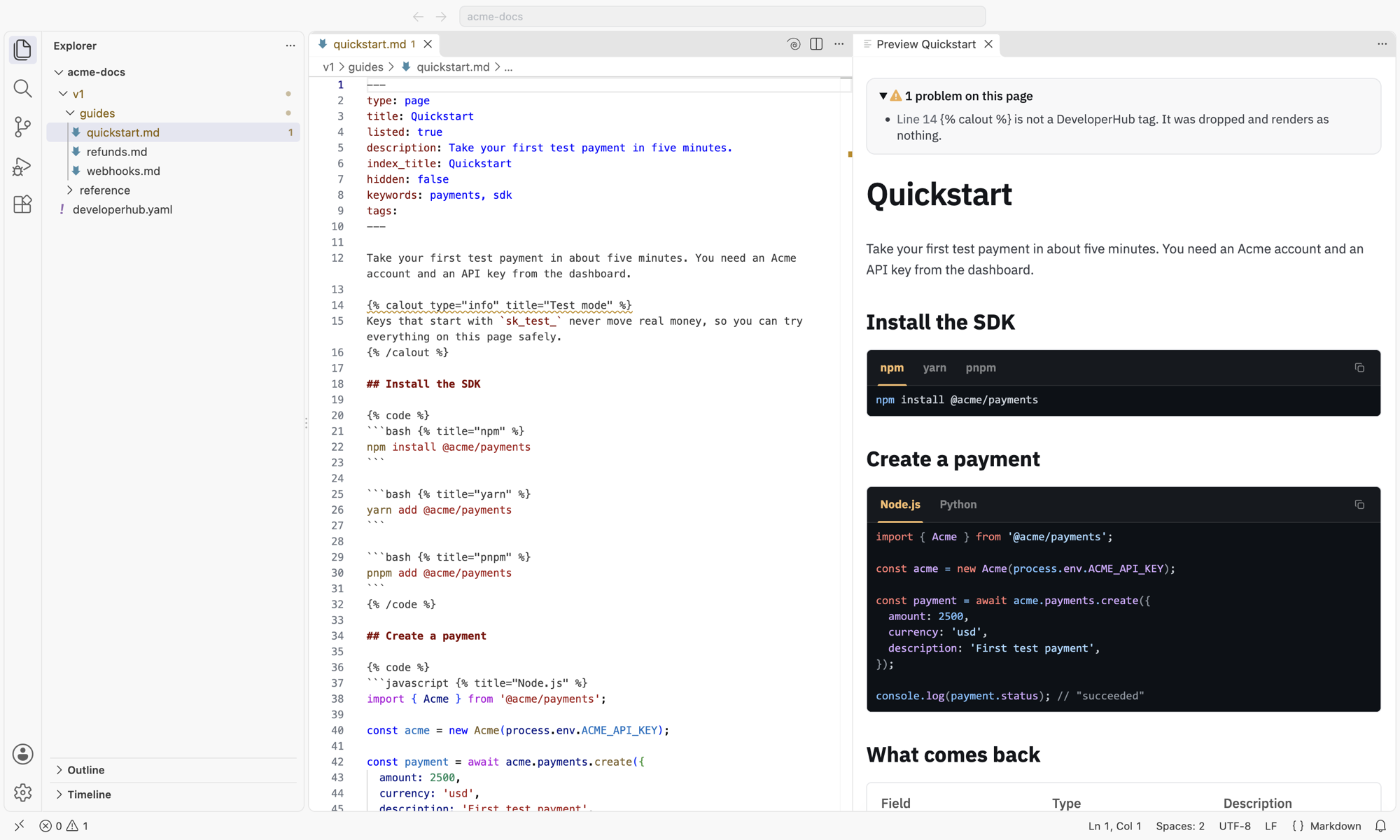
When a tag will not show up the way you meant it, the preview lists it above the page and underlines the line in the editor. In VS Code it is also listed in the Problems panel. This catches a misspelled tag, and a tag that is never closed, which can hide everything after it.
What the Preview Leaves Out
The preview shows the page on its own, without your project's settings:
Variables show their name instead of their value.
Synced blocks show their ID instead of their content.
Audience-only content shows for everyone, inside a dashed box.
GitHub code embeds show a link to the file instead of its code.
Scripts in HTML blocks do not run.
Fonts and colours are those of a new DeveloperHub project, not your theme.
Good to Know
The preview is off in folders you have not trusted: VS Code's Restricted Mode, or an untrusted project in a JetBrains IDE.
It needs an internet connection, since it loads DeveloperHub's reader each time it opens.
Your page is not uploaded or stored anywhere. It is rendered inside your editor.