 Made in DeveloperHub

Supercharged plans admins can set their documentation portal as private, disallowing everyone on the internet to be able to access it. The protected project can be viewed by:
Visiting the documentation site, and entering a shared password.
Opening a shared link.
Invited readers through magic links.
Custom login flow using JSON Web Tokens (JWT).
Single-Sign On (SSO).
If you are on an enterprise plan, then we also provide reader authentication through your intranet.
You can also keep your docs public and show more to readers who sign in, with hybrid access.
Comparison Between Different Methods
Method | Security Level | Ease of Access | Needs a Developer? | Usage |
|---|---|---|---|---|
Weak. Your readers might leak the password. | Need to remember a password | No | Use to block out competitors and crawlers. | |
Weak. Your readers might leak the link. | Easy, click on a link. | No | Use to block out competitors and crawlers. | |
Strong | Easy, readers goes to the docs site, requests a magic link and opens the link. | No | Use to secure data and control access. | |
Strong | Easy, reader needs to go to the docs site, but might need to log into your own site. | Yes | Use to secure data, control access and personalise docs. | |
Strong | Easy, reader needs to go to the docs site, but might need to log into SSO. | No | Use to secure data and control access. | |
Intranet (Enterprise only) | Strong | Easy, reader just needs to go to the docs site. | Yes | Use to secure data and control access. |
Hybrid Access
With hybrid access, your docs stay public and readers who sign in see more. Signed-in readers see the content for their audiences, and everyone else reads the public documentation without signing in.
Leave the Access method on Public, and sign readers in with either:
JWT: send readers to your docs with a signed token in the link. See Identifying Readers on a Public Docs Site.
Reader SSO: readers sign in from your identity provider. Contact us to set it up. See Audiences with Reader SSO.
Password Protect Set up
To set up password protection:
Open Project Settings → Access.
In the Access method card, select Password.
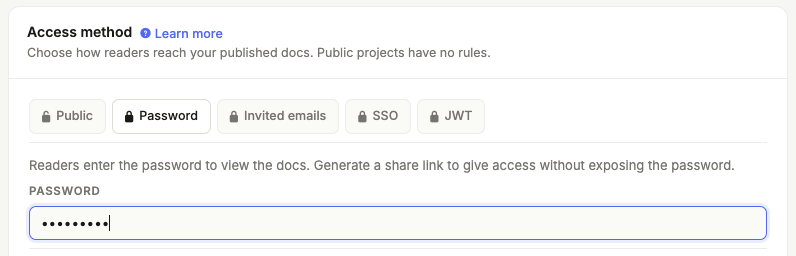
Input the password.
Click Save changes in the top menu.
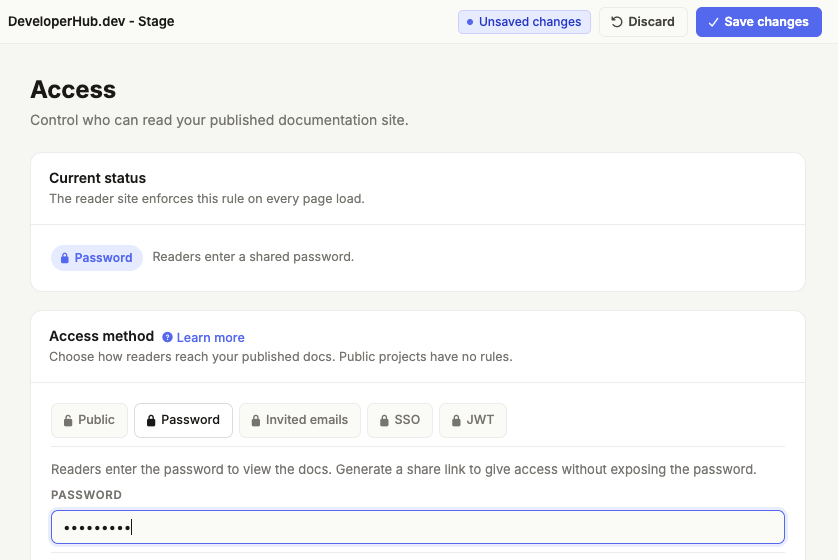
Great, all the published pages of this project are now protected by a password
To try it out, go to the live mode of your documentation. You will be presented with such a page.
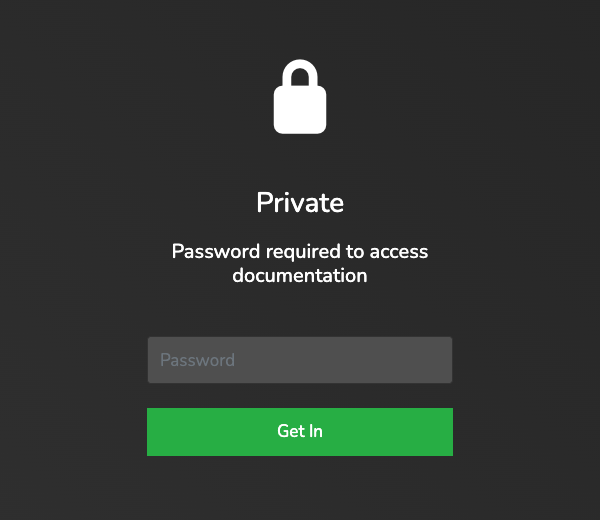
Once a reader inputs the right password, they will continue to be logged in for 24 hours.
You should not save confidential or sensitive information in a password protected project. This is to prevent the general public and search engines from accessing your pages rather than to secure data.
Link Sharing
Once a project is protected by a password, you can share a link which accesses the project without the need to enter a password. You can use this feature to provide only your customers with read access by sharing this link internally with them.
To share a link:
Open Project Settings → Access.
The Sharing & invites card shows the share link.
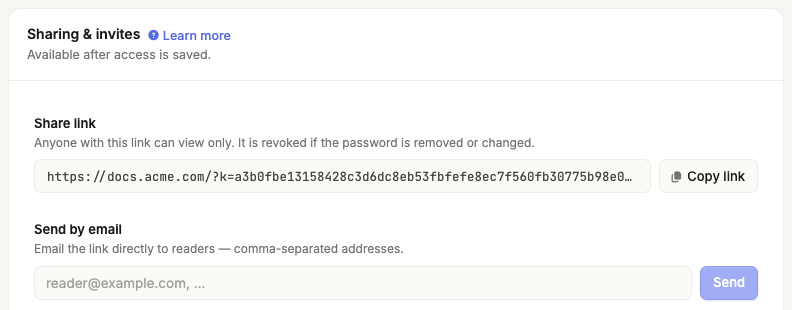
Click Copy link to copy it and paste it wherever you need.
Or, under Send by email, enter your readers' e-mail addresses separated by commas, and click Send.
The link will be revoked once the password changes or is removed.
Using Login URL
If your docs are protected by using a shared link or a custom login flow, then your readers probably need to authenticate with your own website first, and you need to provide them with a URL that allows them to authenticate on your docs. Thus, we can make this easier by redirecting your unauthenticated readers to a URL which you specify, where:
If you are using secure link sharing, it would take them to the page where they can find the link, or the page that redirects them to the link if they're authenticated on your own website.
If you are using custom login, it would take them to an authentication page which if they are already logged in to your own website, then it just redirects back with a valid URL to the docs site, otherwise would prompt them to log in first.
To setup login URL:
Open Project Settings → Access.
Under Login URL, input the URL. An example would be
https://pied-piper.com/docs-login.Click Save changes in the top menu.
Disabling Protection
To disable password protection:
Open Project Settings → Access.
In the Access method card, choose Public .
Click Save changes in the top menu.
The project will then be unprotected.
All your published versions will continue to be published. Make sure to unpublish any version that you do not want accessible to the general public before you unprotect the project if needed.