 Made in DeveloperHub

The Reader MCP Server lets your readers connect their own AI agent directly to your docs and perform contextual actions like intelligent search.
The MCP integration lets agents access your docs via a standardised protocol endpoint under the /mcp route of your docs URL, for example: https://docs.example.com/mcp.
When an MCP-compatible client or AI agent connects to this route, it can use the tools exposed by the MCP server to interact with your docs.
This server is read-only and covers your published docs. To let your own team write and publish pages from an AI client, see the Editor MCP Server.
Tools Available
The tools available under the MCP server are:
search: Runs a natural-language search over your docs.
The MCP server supports the Streamable HTTP transport.
If you need more tools, contact us with the details!
Enabling MCP Server
The reader MCP server runs on the same index as AI Assistant, so AI Assistant has to be on first. To enable the MCP server:
Open Project Settings → AI → AI Agents & MCP, then the Readers tab.
Under AI Assistant, turn on MCP server.
Click Save changes in the top menu.
It will take up to 5 minutes for the change to occur. If the AI Tools button is on, readers can connect Claude Code, Codex, VS Code, or Cursor to your docs from its Connect your AI tool menu item.
Limitations
MCP server is only available for public projects. Contact us if you'd like to add it for a private project.
Try out our MCP Server
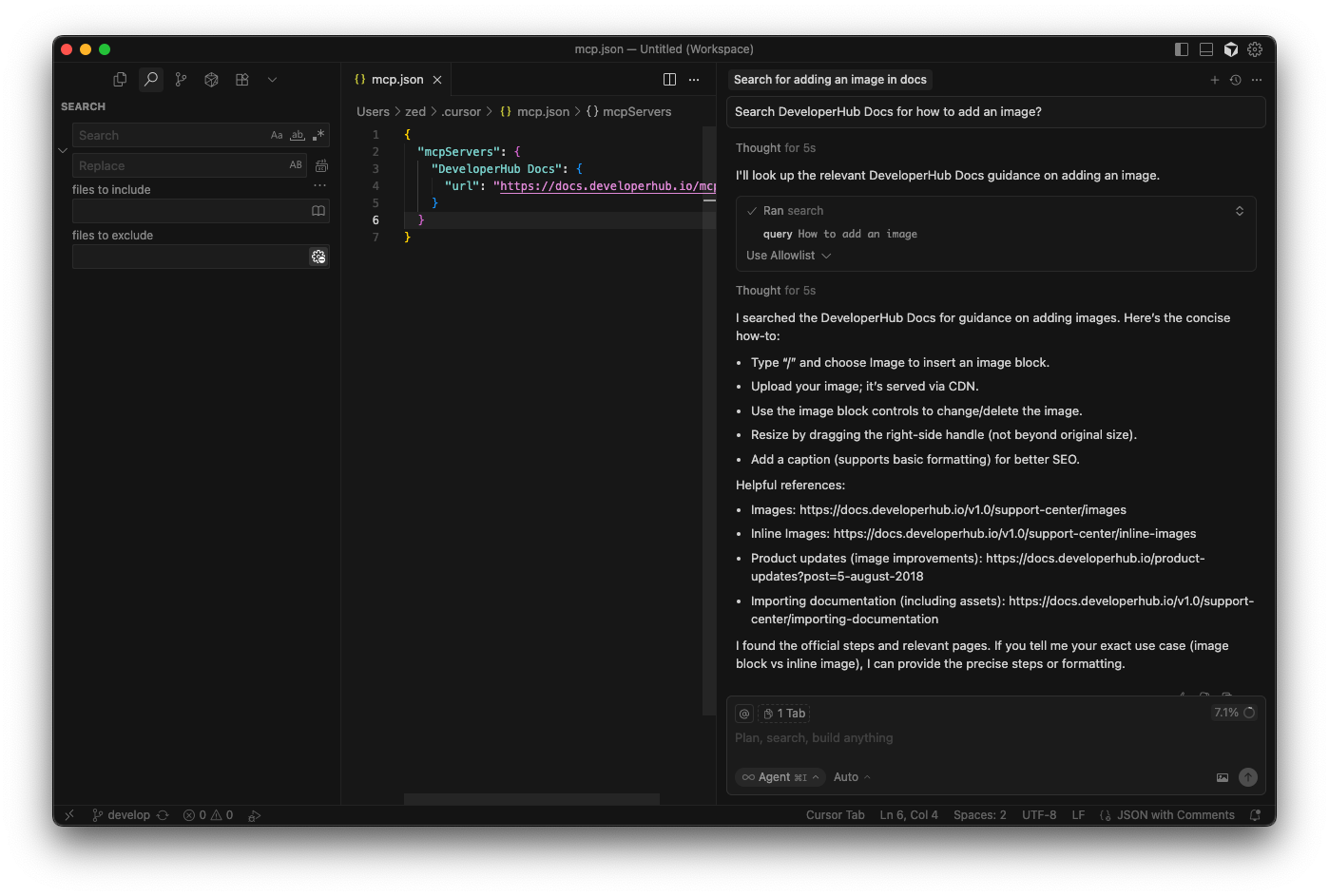
You can test out our own MCP server before enabling it on your docs. For a quick test, click the arrow next to Copy page at the top of this page > Connect your AI tool. Alternatively, you can do it manually. Let's take Cursor as the MCP client for an example:
Launch Cursor.
Under Settings > Cursor Settings.
Click on Tools in the sidebar.
Click New MCP Server.
In the file that was opened, enter the following:
Save the file.
Toggle the AI pane ⌘ + I.
Ask the agent a question like "Search DeveloperHub docs for how to add an image".