 Made in DeveloperHub

You can migrate a Zendesk help centre into DeveloperHub from the editor. DeveloperHub reads your help centre, converts every published article to Markdoc, and groups the result into one new documentation section.
Before You Start
You need the Publisher role or above.
Articles land in the version you currently have open, so switch to the version you want first.
The version must not be locked.
Your help centre must be reachable on the public internet.
Importing from Zendesk
Open Project Settings → Import & Export.
Under Bring content in, click Zendesk.
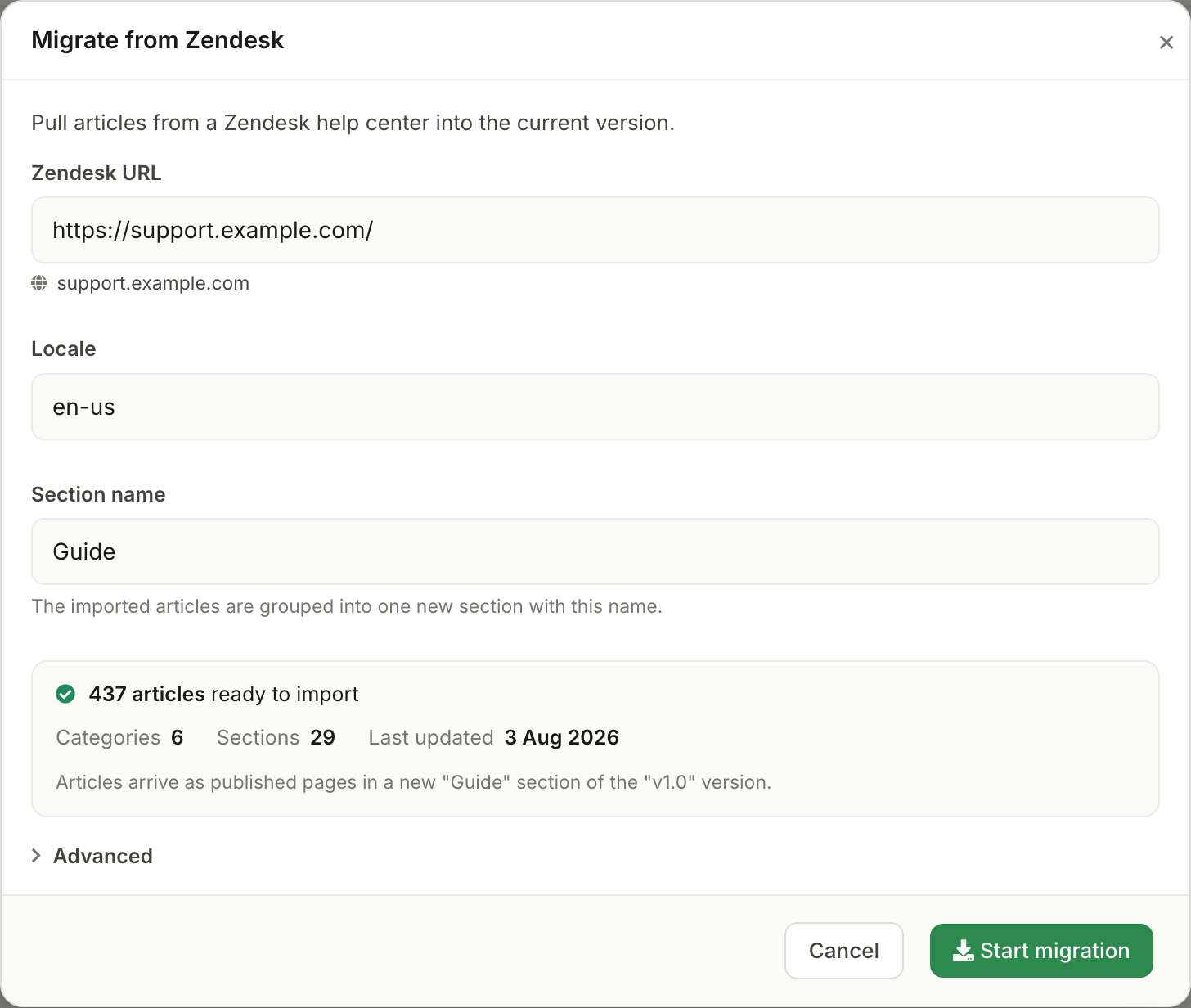
Complete the form, as described below.
Click Start migration.
Zendesk URL
Paste any page from your help centre: an article, a category, or the help centre home page. DeveloperHub reads the address and the locale out of it, so both support.example.com and support.example.com/hc/fr/articles/360001234-Getting-Started work.
Locale
One locale is imported per run. If the address you pasted contains a locale, it is filled in for you. When your help centre publishes more than one locale, the field becomes a picker. To bring in a second locale, run the migration again.
Section name
The name of the new documentation section your articles are grouped into. It defaults to Guide.
If the version already has a section with that name, DeveloperHub tells you, and adds a second one next to it rather than merging into it.
Private help centres
Open Advanced and provide a Zendesk Email and API token if your help centre is not public, or if Zendesk is rate limiting it.
Signing in as an agent means Zendesk also returns draft articles. Drafts are skipped, so fewer pages are created than the preview counts.
Previewing the Import
As soon as your address is recognised, DeveloperHub checks the help centre and reports how many articles, categories and sections it found, and when it was last updated. Nothing is created at this stage.
The preview also names the section and the version your articles will land in, so you can confirm the target before you start. If the help centre cannot be reached, is not public, or publishes nothing in the locale you asked for, the preview says so; correct it, then click Check again.
How Zendesk Content Maps
Zendesk | DeveloperHub |
|---|---|
Help centre, in one locale | One new documentation section |
Category | A category in that section |
Section | A category nested under its category |
Article | A page |
Ordering follows the positions you set in Zendesk. Articles belonging to a category or section that was not imported are placed under a category named Uncategorized, so nothing is dropped.
Images are downloaded and re-hosted on our content delivery network, so they keep working once you turn Zendesk off. Links between imported articles are rewritten to point at their new DeveloperHub pages, including links to a specific heading.
After the Import
Like any new documentation section, the imported section starts unpublished, so your readers cannot see it yet. Review the content, then publish it.
Worth checking before you publish:
Warnings. Any article that could not be converted, and any image that could not be re-hosted, is listed when the run finishes. Images that could not be re-hosted stay linked to Zendesk.
Links to articles that were not imported. Links to drafts, to other locales, and to deleted articles are left pointing at Zendesk.
Page slugs. Slugs are generated from article titles, and long ones are shortened, so your DeveloperHub URLs will not always match your old Zendesk URLs.
Structure. Zendesk nests content differently to DeveloperHub, so you may want to restructure the pages.
Your agents can search the pages you have just migrated from inside a Zendesk ticket, and add a link to them to their reply. See the Zendesk app.
Stopping a Migration
Click Stop migration while a run is in progress. The article being imported finishes, then the run stops.
Pages that were already imported stay in the version. Pages that were created but never reached carry the placeholder text This page hasn't been migrated yet., so delete them or run the migration again.
Migrations always add a new section. Existing versions, sections and pages are never overwritten. Running a migration twice gives you two copies rather than updating the first.