 Made in DeveloperHub

Zendesk works with DeveloperHub in both directions. Our DeveloperHub Docs app puts your published documentation inside a Zendesk ticket, and the Zendesk Web Widget puts Zendesk support on your published documentation.
To bring your Zendesk help centre articles into DeveloperHub in the first place, see Import from Zendesk.
Zendesk App
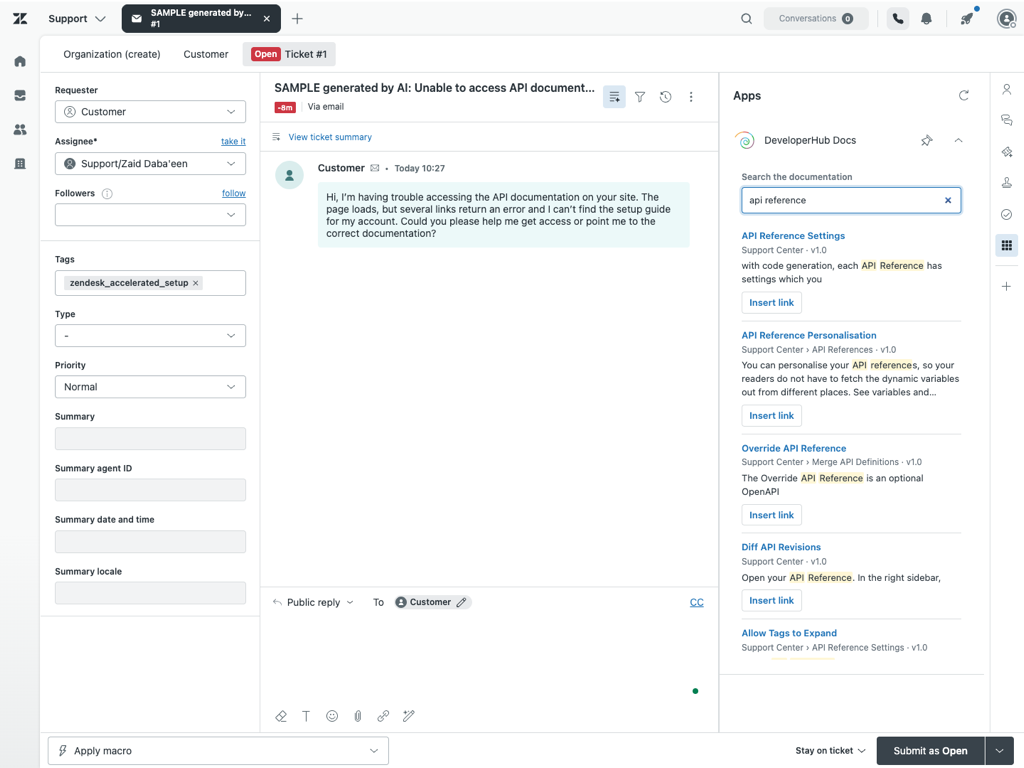
DeveloperHub Docs is our app for Zendesk Support. It adds a panel to the ticket sidebar where your agents search your published documentation and drop a link to the matching page straight into their reply.
Agents stop hunting through your documentation in another tab and pasting addresses by hand. Each link points at the exact heading that matched, so your customer lands on the answer rather than the top of a long page.
Install it from the Zendesk Marketplace.
Before You Start
You need:
A Zendesk administrator account. Only administrators can install apps.
A DeveloperHub project with published documentation. The app searches published content only, so drafts and unpublished versions never appear.
A plan that includes the search API. Contact us if you are not sure.
Creating an API Key
The app searches using an API key, and that key also decides which project is searched. Create it in the project whose documentation your agents should see.
Open Project Settings → API Keys.
Create a new key, and give it a name that makes its purpose obvious, such as
Zendesk app.Under permissions, enable Search → Query the search API, and nothing else. A key limited to search cannot read or change anything else in your project.
Save the key, then copy it.
Installing the App
In Zendesk, open Admin Center.
Go to Apps and integrations → Apps → Zendesk Support apps.
Click Marketplace, and search for DeveloperHub Docs.
Open the listing, and click Install.
Zendesk shows the settings form as soon as the install finishes. You can come back to it later from the app's Settings in Admin Center.
Setting | What to enter |
|---|---|
DeveloperHub API key | The key you copied above. |
Documentation version |
|
Link format |
|
The same screen limits the panel to certain agent roles or groups, under Enable role restrictions and Enable group restrictions.
Click Install (or Update) to save.
One installation searches one project. To cover several products with separate documentation, install the app once per project, each with its own API key. Name each installation clearly, since your agents see all of them in the sidebar.
Searching from a Ticket
Open any ticket, and find the DeveloperHub Docs panel in the right-hand sidebar. Type at least two characters; results appear as you type.
Each result names the heading that matched, the documentation section and page it sits on, its version, and a snippet with your agent's search terms highlighted. From there:
Click a result title to open that page in a new browser tab, and check it before sending.
Click Insert link to add a link to it to the reply being written.
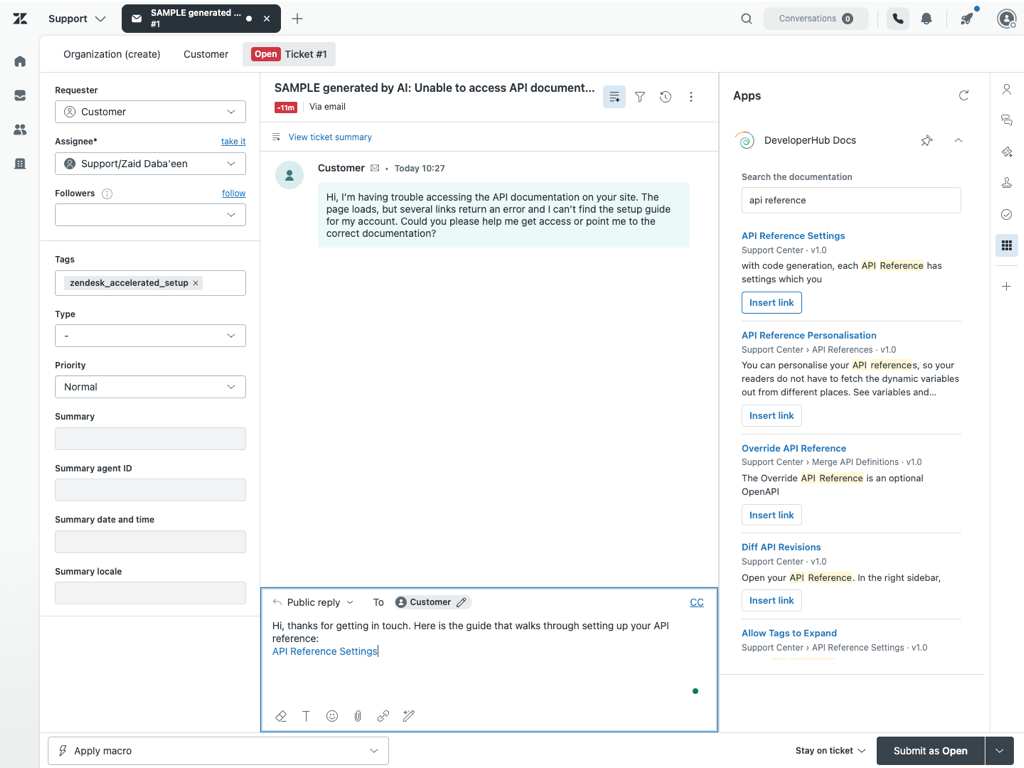
Zendesk only accepts inserted content at the end of an open reply, so write your message first and add your links after it. If you need a link mid sentence, move it once it is in.
What Leaves Zendesk
Only what an agent types into the search box is sent to DeveloperHub. Ticket content, requester details and agent identity never leave Zendesk, and the app stores nothing of its own.
Your API key is held by Zendesk as a secure setting and added to each search on Zendesk's servers, so it never reaches the agent's browser and cannot be read from it.
The key grants search and nothing else. It cannot read, change or publish your documentation, and revoking it in DeveloperHub stops the app immediately.
Troubleshooting
Message | What to do |
|---|---|
DeveloperHub rejected the API key. | The key is wrong, has been revoked, or lacks the search permission. Create a new one with Query the search API enabled, and paste it into the app settings. |
The search API is not available on this project's plan. | Your plan does not include the search API. Contact us to have it enabled. |
No matching pages found, for something you know is documented. | Check the Documentation version setting: a version that does not contain the page cannot return it. Setting it to |
Could not add the link. Open a reply on this ticket, then try again. | Zendesk accepts inserted content only while a reply is open. Click into the comment box, then use Insert link again. |
Too many searches in a short time. | The search API allows a high but finite number of requests per hour across your account. Wait a minute and try again. |
If the panel is blank, reload the ticket. If it stays blank, confirm in Admin Center that the app is installed, and that your role and group are not excluded by a role or group restriction.
Zendesk Web Widget
The Zendesk Web Widget puts Zendesk support on your published documentation. To add it, you must have a plan with Custom HEAD Tags enabled.

Setting up Zendesk Web Widget
Follow the steps as provided in Quickstart - Web Widget (Classic) APIs. Add the following Custom HEAD Tag replacing YOUR_SNIPPET_KEY with your own key: